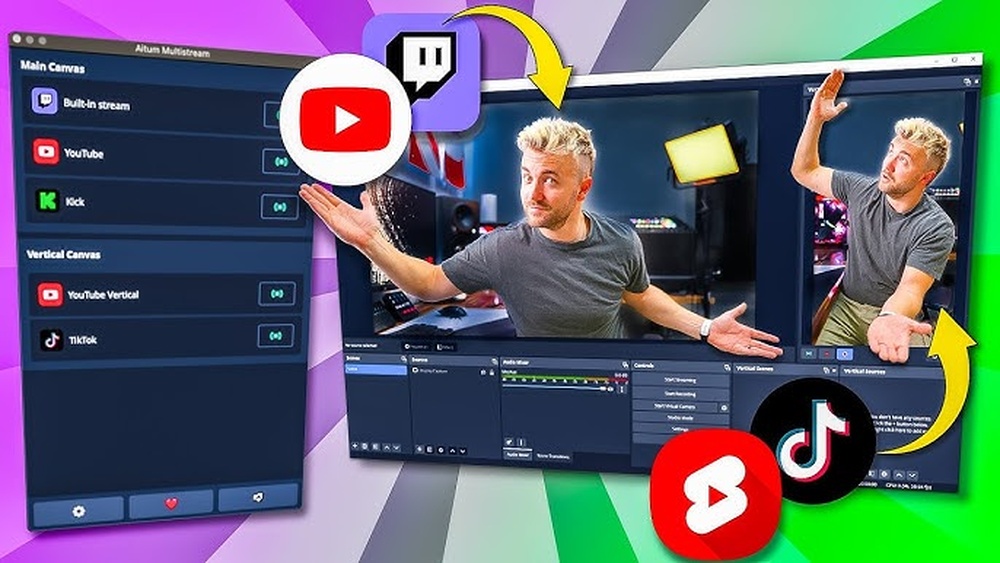
Are you ready to reach more viewers and grow your audience faster? Multistreaming to YouTube Shorts and Twitch lets you share your content on both platforms at the same time, saving you time and effort.
Imagine boosting your visibility without doubling your work. In this guide, you’ll learn simple, step-by-step ways to multistream like a pro. By the end, you’ll know exactly how to set everything up and start attracting viewers from both YouTube Shorts and Twitch.
Keep reading to unlock the secrets that can take your streaming to the next level.
Credit: www.nearstream.us
Benefits Of Multistreaming
Multistreaming allows creators to broadcast on multiple platforms at once. This method saves time and effort. It helps reach more people without extra work. Many streamers use it to grow their channels quickly. There are clear benefits to multistreaming on YouTube Shorts and Twitch.
Reach Wider Audience
Streaming on YouTube Shorts and Twitch at the same time increases your visibility. Each platform has its own viewers. By multistreaming, you tap into both audiences. This means more people see your content. You get more chances to gain new followers. Your content spreads faster across the internet.
Increase Engagement
Multistreaming invites interaction from different communities. Viewers on YouTube Shorts and Twitch join conversations. More comments, likes, and shares happen. This boosts your content’s popularity. You can respond to more fans and build relationships. Engagement helps your channel grow stronger and more active.
Maximize Content Value
Creating content takes time and energy. Multistreaming makes the most of your work. The same stream reaches multiple places at once. This saves time and effort on creating separate streams. You get more value from one session. Your hard work reaches more people without extra cost.
Requirements For Multistreaming
Multistreaming means streaming your content on multiple platforms at once. To do this smoothly, you need some basic tools and setups. These are important for a good streaming experience on YouTube Shorts and Twitch.
Hardware And Software Needs
You need a computer or device that can handle streaming to two platforms. A good processor and enough memory help avoid lag. You also need streaming software like OBS Studio or Streamlabs. These tools send your video to both YouTube Shorts and Twitch. A webcam and microphone improve your stream quality.
Stable Internet Connection
A strong and steady internet connection is key. Upload speed should be at least 5 Mbps for smooth streaming. Avoid Wi-Fi if possible. Use a wired connection for better stability. Interruptions or slow speed cause buffering and drop your stream quality.
Accounts Setup On Platforms
Create accounts on YouTube and Twitch before you start. Verify your accounts to unlock streaming features. Link your streaming software to both platforms using stream keys. Check each platform’s rules and settings for live streams. This prevents issues during your broadcast.
Choosing The Right Multistreaming Tools
Choosing the right multistreaming tools is key for a smooth broadcast. The right tool saves time and effort. It helps stream to Youtube Shorts and Twitch without trouble. Not all tools fit every need. Some are simple, some offer many features. Understanding options helps to pick the best tool.
Popular Multistreaming Services
Many multistreaming services exist today. Restream is a top choice for many users. It supports many platforms and is easy to use. StreamYard offers a simple interface and good features. Castr allows scheduling streams and adding custom RTMP. Each service has strengths. Choose one that fits your style.
Free Vs Paid Options
Free options work well for beginners. They often limit the number of platforms. Paid services add more features and streams. They remove ads and offer better support. Paid plans help with higher video quality. Decide based on your budget and needs. Starting free is always possible.
Compatibility With Youtube Shorts And Twitch
Check if the tool supports Youtube Shorts format. Shorts need vertical video and short length. Twitch streams are usually longer and horizontal. Some tools handle both formats well. Look for tools that allow easy switching. Compatibility avoids extra work during streaming.

Credit: win.gg
Setting Up For Youtube Shorts
Setting up for YouTube Shorts is a key step for successful multistreaming. Proper setup helps your video look good and reach more viewers. It also makes sure your content fits the YouTube Shorts format perfectly. Follow these tips to prepare your videos for YouTube Shorts while streaming on Twitch.
Optimal Video Format And Length
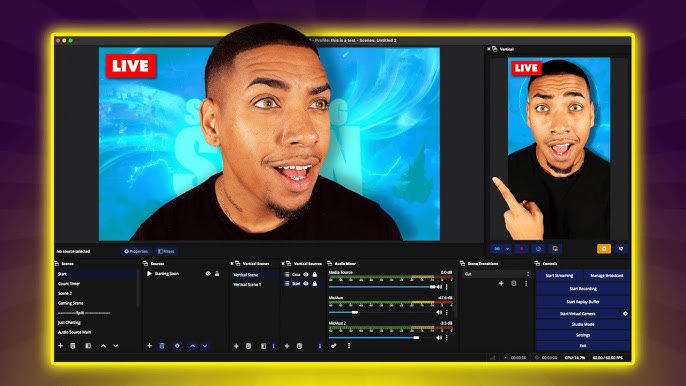
YouTube Shorts videos must be vertical. Use a 9:16 aspect ratio. The ideal resolution is 1080 by 1920 pixels. Videos should be 60 seconds or shorter. This length fits Shorts rules and keeps viewers interested. Use MP4 or MOV file formats. These formats work well on YouTube and Twitch platforms.
Using Mobile Vs Desktop
Mobile devices are great for quick, vertical shots. They capture natural, on-the-go content easily. Desktop setups offer more control over video quality. Use a webcam or capture card for better visuals. Choose mobile for casual, fast streams. Pick desktop for polished, planned videos. Both options support multistreaming to Twitch and YouTube Shorts.
Key Settings For Shorts
Enable the “Shorts” feature in your YouTube upload settings. Add Shorts in your video title or description. This tags your video as a Short. Set your video privacy to public. This allows more viewers to find your content. Adjust the video thumbnail to fit vertical format. These steps help your Shorts get more exposure on YouTube.
Configuring Twitch Stream
Configuring your Twitch stream correctly is key to a smooth multistream experience. Twitch has specific settings that affect stream quality and viewer engagement. Setting up the stream right makes your content look professional and keeps viewers interested.
Stream Key And Server Selection
Start by getting your Twitch stream key from the dashboard. This unique code links your streaming software to your Twitch channel. Never share this key with others to keep your channel safe.
Next, select the best Twitch server. Choose one close to your location for faster streaming. A good server reduces lag and buffering for viewers.
Overlay And Alerts Setup
Add overlays to show your brand and important info on screen. Use simple designs that do not block the main content. Overlays help viewers recognize your stream easily.
Set up alerts for new followers, subscriptions, and donations. Alerts keep the stream lively and thank viewers for their support. Use clear sounds and visuals that match your style.
Optimizing For Viewer Interaction
Engage with your chat during the stream. Answer questions and greet new viewers to build a community. Interaction makes viewers feel welcome and more likely to return.
Use chat commands and polls to involve your audience. These tools create fun ways for viewers to participate. Keep your stream friendly and easy to follow.
Step-by-step Multistreaming Process
Multistreaming lets you broadcast on YouTube Shorts and Twitch at once. This saves time and grows your audience faster. Follow these simple steps to start multistreaming easily. Each step helps you set up and manage your streams without hassle.
Connecting Accounts To Multistreaming Service
First, choose a multistreaming platform like Restream or StreamYard. Create an account on the platform. Next, link your YouTube Shorts and Twitch accounts to it. The service will ask for permission to access your channels. Approve the access to connect both accounts safely. After linking, you can stream to both platforms at the same time.
Configuring Stream Settings
Adjust your stream settings on the multistreaming dashboard. Set your video quality, resolution, and bitrate. Choose the right settings for your internet speed. Enter your stream title and description for both platforms. Make sure your audio and video devices work well. Check if the multistreaming service supports YouTube Shorts format. Save your settings before moving to the next step.
Starting And Managing The Stream
Open your streaming software like OBS or Streamlabs. Use the stream key from the multistreaming service. Paste it into your streaming software’s settings. Click “Start Streaming” to go live on YouTube Shorts and Twitch. Monitor chat and viewer activity from the multistreaming dashboard. Stop the stream anytime by clicking “Stop Streaming” in your software. Keep your stream smooth by watching connection status and alerts.
Tips For Successful Multistreaming
Multistreaming to YouTube Shorts and Twitch can increase your reach and grow your audience. It requires focus and good planning. Successful multistreaming means keeping both audiences interested and managing chats and technical problems smoothly.
Engaging Both Audiences Simultaneously
Talk to viewers on both platforms in a way that fits each. Use simple language that works for everyone. Share content that excites both groups. Avoid focusing too much on one platform. Make short pauses to check reactions. This keeps viewers feeling included and valued.
Monitoring Chat On Multiple Platforms
Use tools to see chats from YouTube Shorts and Twitch in one place. Respond to questions and comments quickly. Set alerts for important messages or new followers. Keep your tone friendly and clear. This helps build a strong connection with viewers everywhere.
Handling Technical Issues
Test your internet and devices before streaming. Have backup equipment ready. Know basic fixes for sound and video problems. Stay calm and explain issues to your audience if they happen. Quick action keeps streams running smoothly and viewers happy.
Credit: www.youtube.com
Common Challenges And Solutions
Multistreaming to YouTube Shorts and Twitch can bring great reach. Yet, it comes with some common challenges. These issues often slow down the streaming experience. Understanding these problems helps to solve them fast. Below are key challenges and simple solutions.
Latency And Sync Problems
Latency means a delay between your actions and what viewers see. Sync problems happen when audio and video are out of time. These issues confuse viewers and hurt engagement. Use a fast internet connection to reduce delay. Adjust the streaming software settings for better sync. Test your stream before going live to catch issues early.
Platform-specific Restrictions
YouTube Shorts and Twitch have different rules. Each platform limits video length, format, and quality. Twitch focuses on longer streams; Shorts are for quick clips. Check each platform’s guidelines before streaming. Use software that supports both platforms well. Tailor your stream to fit each platform’s needs.
Bandwidth Management
Bandwidth is the internet speed used to send your stream. Multistreaming uses more bandwidth than streaming to one site. Low bandwidth causes buffering and poor video quality. Monitor your internet speed regularly. Lower your stream’s resolution or bitrate if needed. Use a wired connection for more stable bandwidth.
Improving Stream Quality
Improving the quality of your stream helps keep viewers interested and coming back. Clear video and crisp audio make your content enjoyable. Small changes can lead to big improvements in how your stream looks and sounds. Focus on three key areas to enhance your streaming quality.
Audio And Video Enhancements
Use a good microphone to capture clear sound. Avoid background noise as much as possible. Test your audio levels before streaming. For video, choose a camera that records in at least 720p. Adjust your streaming software settings for the best output. Keep your internet speed fast and stable to avoid lag.
Lighting And Background Setup
Good lighting brightens your face and reduces shadows. Use natural light or affordable LED lights. Avoid strong lights from behind you. A clean and simple background keeps viewers focused. Remove clutter and distractions from your streaming area. Personalize the background to match your style.
Regular Equipment Maintenance
Check your gear regularly for dust and damage. Clean your camera lens and microphone. Update your software to the latest version. Replace old or faulty cables and parts. Proper care extends the life of your equipment. Well-maintained gear delivers consistent streaming quality.
Growing Your Audience On Youtube Shorts And Twitch
Growing your audience on YouTube Shorts and Twitch requires focus and smart effort. Both platforms have unique features and viewers. Using them together can bring more followers and viewers to your content. Understanding how to keep your audience engaged is key. This section explores simple ways to build a strong presence on both platforms.
Content Consistency
Post videos and streams often. Regular content helps viewers know when to expect you. It builds trust and keeps people coming back. Use a schedule that fits your time and stick to it. Short clips on YouTube Shorts can fill gaps between longer Twitch streams. Consistent uploads make your channel active and attractive.
Cross-promotion Strategies
Use each platform to promote the other. Share your Twitch stream link in your YouTube Shorts description. Mention your YouTube Shorts during Twitch streams. This way, viewers can find your content easily. Create short highlights from your Twitch streams for YouTube Shorts. It shows new viewers what they miss. Cross-promotion grows both audiences together.
Engaging Community Building
Talk with your viewers during streams and in comments. Answer questions and thank them for watching. Create polls or ask for ideas to involve your audience. Use chat and comment sections to build friendships. A friendly community keeps viewers loyal and eager to return. Engaged fans share your content and invite friends.
Frequently Asked Questions
How Can I Multistream To Youtube Shorts And Twitch?
You can use multistreaming software like Restream or Streamlabs. Connect both YouTube Shorts and Twitch accounts, then start streaming simultaneously to reach wider audiences.
What Equipment Is Needed For Multistreaming?
You need a good PC, reliable internet, webcam, microphone, and streaming software that supports multistreaming, such as OBS Studio or Streamlabs.
Is Multistreaming To Youtube Shorts And Twitch Free?
Many multistreaming platforms offer free plans with limitations. Paid plans provide more features, higher quality, and support for multiple platforms simultaneously.
Can I Use Obs For Multistreaming To Both Platforms?
Yes, OBS supports multistreaming with plugins or by using third-party services that integrate with OBS, allowing simultaneous streaming to YouTube Shorts and Twitch.
Conclusion
Multistreaming to YouTube Shorts and Twitch helps reach more viewers. It saves time by sharing content on both platforms simultaneously. Choose the right tools to keep your streams smooth and clear. Test your setup before going live to avoid issues.
Engage with your audience on both channels to build a strong community. Keep your content simple and fun to attract more followers. Try multistreaming regularly to see what works best for you. This approach can grow your online presence step by step.