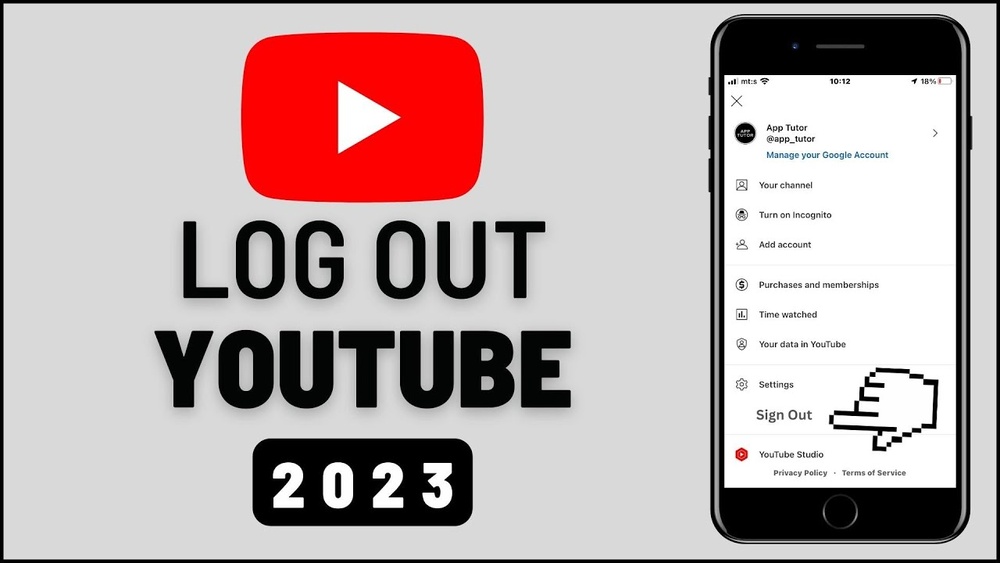
Are you wondering how to logout of YouTube quickly and easily? Whether you’re using a shared device or just want to keep your account secure, knowing how to sign out is essential.
You’ll discover simple steps to log out from any device. By the end, you’ll feel confident managing your YouTube account and protecting your privacy every time you finish watching. Keep reading to find out how to take control of your YouTube experience right now!
:max_bytes(150000):strip_icc()/003_log-out-of-youtube-5215409-cc34ec7271f043f8aeea3a8e3f7b94f0.jpg)
Credit: www.lifewire.com
Sign Out On Desktop
Signing out of YouTube on a desktop is simple and quick. It helps protect your privacy, especially on shared computers. Follow these easy steps to log out safely.
Locate Your Profile Icon
Look at the top right corner of the YouTube page. You will see a small round icon. This icon shows your profile picture or your initial if no picture is set.
Access The Account Menu
Click on the profile icon. A menu will appear below it. This menu contains various account options and settings.
Click The Sign Out Button
Scroll down in the menu. Find the “Sign out” button at the bottom. Click it to log out of your YouTube account immediately.
Sign Out On Mobile App
Signing out of the YouTube mobile app is simple and quick. This step helps keep your account safe, especially when you use a shared device. Follow these easy steps to log out on your phone or tablet.
Open The Youtube App
Start by unlocking your phone and finding the YouTube app icon. Tap the icon to open YouTube. Wait for the app to load completely before moving on.
Tap Your Profile Picture
Look at the top right corner of the screen. You will see your profile picture there. Tap it gently to open your account menu.
Find The Sign Out Option
In the menu, scroll down to find the “Sign out” button. Tap this button once to log out of your account. The app will confirm you are signed out and ready to use without an account or to switch users.
Sign Out From Multiple Accounts
Signing out from multiple YouTube accounts can be tricky. Many users have more than one account logged in on the same device. Knowing how to sign out properly helps protect your privacy and keep your accounts secure. This guide will show you easy steps to manage and remove accounts on YouTube.
Manage Account Switching
YouTube lets you switch between accounts without signing out. Tap your profile icon at the top right. A list of all logged-in accounts appears. Select the account you want to use. This saves time and keeps your viewing separate. But remember, switching does not log you out.
To log out, you must sign out from each account individually. Go to your profile icon again. Choose “Sign out” or “Sign out of all accounts.” This logs you out from the selected or all accounts on that device. Use this method to keep your sessions safe.
Remove Accounts From Device
Removing an account stops it from appearing on the device. Open YouTube and tap the profile icon. Select “Manage accounts on this device.” You will see all accounts linked to the device. Tap “Remove” next to the account you want to delete. Confirm your choice to remove the account.
This does not delete the YouTube account itself. It just removes it from your device. You can add the account again anytime by signing in. Removing unused accounts keeps your device clean and secure.

Credit: www.youtube.com
Troubleshooting Sign Out Issues
Sometimes, signing out of YouTube can be tricky. The sign-out button might not work or may freeze. These problems can happen due to browser or app issues. Fixing them is simple and does not take much time. Below are two key steps to try if you face sign-out problems on YouTube.
Clear Browser Cache And Cookies
Cached data and cookies can cause sign-out issues. Clear them to fix the problem quickly. Go to your browser settings. Find the options for clearing browsing data. Select cache and cookies only. Then, click clear data. Restart the browser and try signing out again. This step removes old files that may block the sign-out process.
Update The Youtube App
An outdated app may stop the sign-out function. Check your device’s app store for updates. If an update is available, install it right away. The new version often fixes bugs and improves app performance. After updating, open YouTube and try to sign out. This method helps solve many app-related issues fast.

Credit: www.wikihow.com
Frequently Asked Questions
How Do I Logout From Youtube On Desktop?
To logout on desktop, click your profile icon at the top right. Select “Sign out” from the dropdown menu. This instantly logs you out of your YouTube account on that browser.
Can I Logout From Youtube On Mobile App?
Yes, open the YouTube app, tap your profile picture, go to “Settings,” then tap your account name. Choose “Sign out” to logout from the app.
Why Can’t I Find The Logout Button On Youtube?
The logout option is under your profile icon. If missing, ensure you’re signed in. Sometimes app updates change its location to Settings.
Does Logging Out Delete My Youtube History?
No, logging out does not delete your watch or search history. Your data stays saved to your Google account for later use.
Conclusion
Logging out of YouTube keeps your account safe and private. It only takes a few steps to sign out on any device. Remember to log out when you share devices with others. This helps protect your personal information. Now, you know how to log out quickly and easily.
Enjoy browsing YouTube with peace of mind. Stay in control of your account every time you watch videos. Simple and secure.