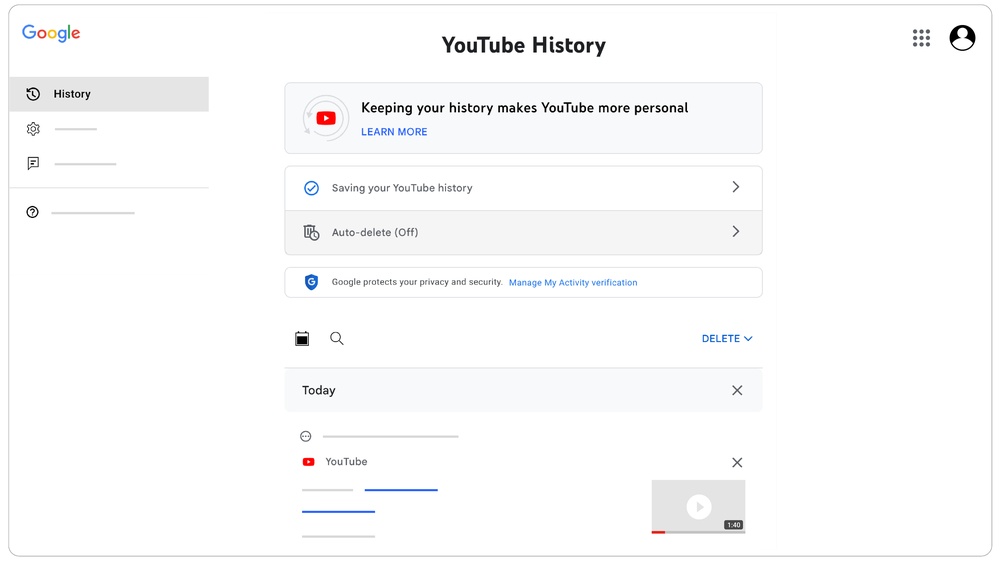
Have you ever wanted to keep your YouTube searches private or just start fresh without old searches cluttering your history? Clearing your YouTube search history is easier than you might think, and it can help improve your recommendations and protect your privacy.
You’ll learn simple, step-by-step ways to clear your search history on any device. Keep reading to regain control over your YouTube experience and enjoy a cleaner, more personalized browsing session.
Credit: www.ionos.com
Why Clear Youtube Search History
Clearing your YouTube search history can be very useful. It helps keep your activities private. It also makes your video suggestions better. YouTube saves every search you make. Sometimes, this data is not helpful or wanted. Removing it can improve your experience and security.
Privacy Concerns
YouTube saves all your search terms. Anyone who uses your device can see them. This can reveal personal interests or habits. Clearing your search history keeps your information safe. It stops others from knowing what you watch or search.
Improving Recommendations
YouTube uses search history to suggest videos. Old or unwanted searches can change these suggestions. Clearing your history gives YouTube a fresh start. This helps you get better and more relevant video ideas. It makes your feed more useful and fun.
Freeing Up Account Data
Search history takes up space in your account. Removing it can help keep your account clean. It may speed up the YouTube app or website. Clearing data also reduces clutter in your account settings. A tidy account is easier to manage and control.
Clearing Search History On Desktop
Clearing your YouTube search history on a desktop is a quick way to keep your activity private. It also helps YouTube show better video suggestions. The process is simple and can be done in a few steps. Below are clear instructions to guide you through it.
Accessing History Settings
Start by opening YouTube on your desktop browser. Click on the three lines menu icon at the top left corner. Select “History” from the menu options. This takes you to your watch and search history page. Then, click on “Search history” on the right side. This section shows all your past searches.
Deleting Individual Searches
On the search history page, scroll through your past searches. Find the search you want to remove. Click the small “X” next to that search entry. This deletes that single search term from your history. Repeat to remove more specific searches if needed.
Clearing Entire Search History
To remove all your searches, look for the “Clear all search history” option. Click on it, and a confirmation box will appear. Confirm your choice by clicking “Clear Search History.” This deletes every search you made on YouTube. Your search history now starts fresh.
Clearing Search History On Mobile
Clearing your YouTube search history on mobile keeps your account tidy and private. It helps YouTube suggest videos you want, not old searches. You can remove specific searches or clear all history at once. This guide shows simple steps using the YouTube app.
Using The Youtube App
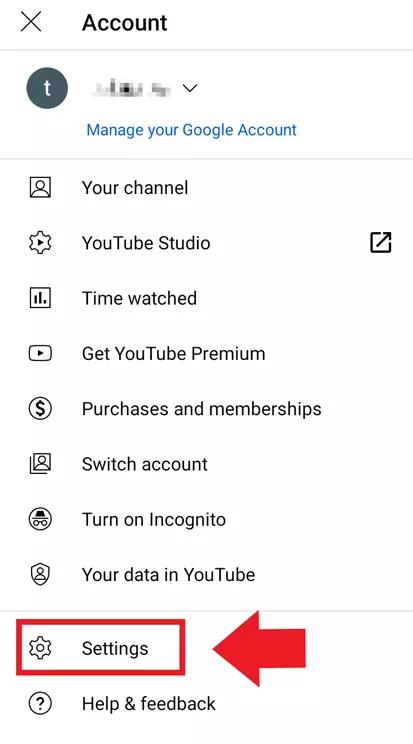
Open the YouTube app on your mobile device. Tap your profile icon in the top right corner. Select “Settings” from the menu. Then choose “History & privacy” to manage your search history. This section controls your past searches and watch data.
Removing Specific Searches
Go to the YouTube app home screen. Tap the search bar to see recent searches. Find the search you want to delete. Tap the “X” next to that search to remove it. This deletes only the selected search, keeping the rest.
Clearing All Search History
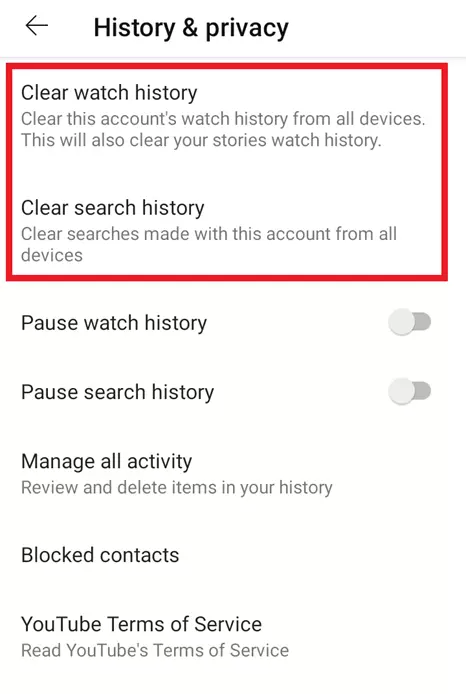
In the “History & privacy” settings, find “Clear search history.” Tap this option to delete all past searches. Confirm your choice to remove the entire search history. This action cannot be undone, so be sure before clearing.
Pausing Search History Tracking
Pausing search history tracking on YouTube helps protect your privacy. It stops YouTube from saving your search terms. This means your future searches won’t be recorded. You can pause this feature anytime. It works on both desktop and mobile devices. Follow simple steps to pause the tracking and keep your searches private.
Turning Off Search History On Desktop
Open YouTube on your computer browser. Click on your profile icon at the top right. Select “Your data in YouTube” from the menu. Scroll down to “YouTube Search History.” Click on “Manage your YouTube Search History.” You will see the option to pause the search history. Click the toggle button to turn it off. Confirm by clicking “Pause.” Your search history will stop saving immediately.
Disabling History On Mobile
Open the YouTube app on your phone. Tap your profile picture in the top right corner. Select “Settings” from the menu. Tap “History & privacy.” Find the option “Pause search history.” Tap the switch next to it to disable search history. Confirm if asked. Your mobile searches will no longer be saved.
Managing Watch History For Privacy
Managing your YouTube watch history is important for privacy. It helps control what YouTube remembers about the videos you watch. This can prevent unwanted suggestions and keep your viewing habits private. You can delete or pause your watch history easily.
Deleting Watch History
Deleting your watch history removes all videos you have watched. This clears your activity from YouTube’s memory. To do this, go to your YouTube History page. Find the option to clear watch history and click it. This stops YouTube from using old data to suggest videos.
You can delete history for specific videos too. Just find the video in your history list. Click the remove button next to the video. This lets you keep some history while removing others.
Pausing Watch History
Pausing watch history stops YouTube from saving new videos you watch. This keeps your future viewing private. Go to the History settings on YouTube. Find the option to pause watch history and turn it on. You can turn it off anytime to resume saving history.
Pausing is useful when watching sensitive or surprise videos. It prevents those videos from showing up in recommendations. This method keeps your privacy without deleting past history.
Credit: www.ionos.com
Tips To Protect Youtube Privacy
Protecting your privacy on YouTube is important. Watching videos should feel safe and private. Some simple steps can help keep your activity hidden. These tips help control what others see about your viewing habits. Follow these easy ways to stay private on YouTube.
Using Incognito Mode
Incognito mode lets you watch videos without saving history. It does not save your searches or watched videos. This keeps your activity private on your device. Turn on incognito mode before browsing for extra privacy. It works well for one-time or private viewing sessions.
Regular History Maintenance
Deleting your search and watch history often keeps your account clean. Clear your history from YouTube settings regularly. This stops old videos from showing in recommendations. You can also pause your watch history to stop recording temporarily. Regular maintenance helps keep your viewing habits private.
Account Security Settings
Strong security settings protect your YouTube account from others. Use a strong password and change it often. Enable two-step verification for extra protection. Check your connected devices and sign out of unknown ones. Secure settings help keep your data safe from unauthorized access.

Credit: www.youtube.com
Frequently Asked Questions
How Do I Clear My Youtube Search History?
To clear YouTube search history, go to the History section on YouTube. Click “Clear all search history” to delete all past searches instantly.
Can I Delete Specific Searches On Youtube?
Yes, you can delete specific searches by going to the search history page. Click the “X” next to each search entry you want to remove.
Does Clearing Search History Affect Video Recommendations?
Yes, clearing search history resets your video recommendations. YouTube uses your search data to personalize suggestions, so clearing it changes what videos are recommended.
How Often Should I Clear Youtube Search History?
Clear your YouTube search history regularly if privacy is a concern. Doing this monthly helps keep your search data private and your recommendations fresh.
Conclusion
Clearing your YouTube search history keeps your account tidy. It also helps YouTube show better video suggestions. You can delete searches anytime on your phone or computer. This simple step protects your privacy and improves your experience. Try these easy tips to manage your history today.
Stay in control of what you watch and search. Small actions like this make a big difference.