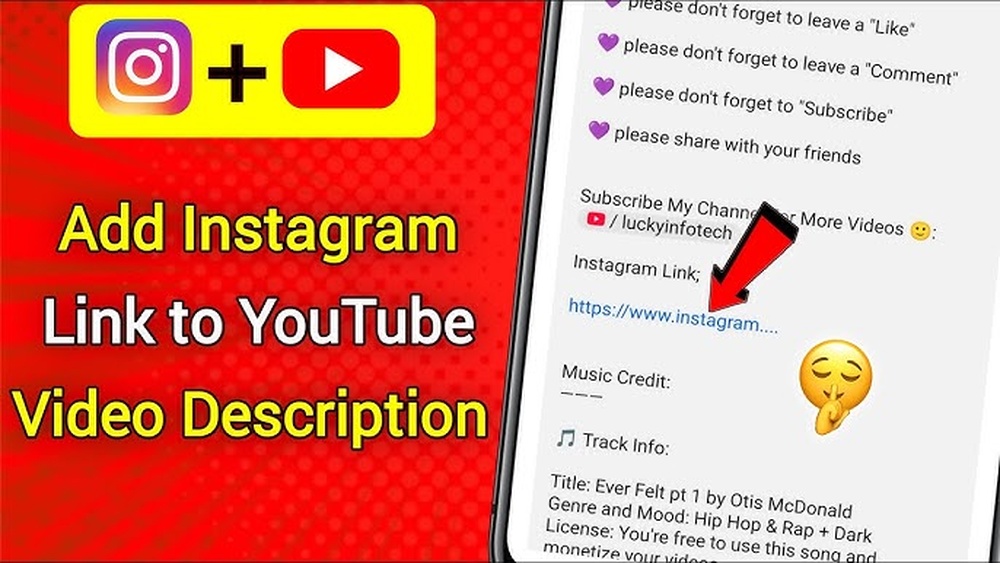
Want to grow your Instagram following using your YouTube channel? Adding your Instagram link to your YouTube comments is a smart way to grab attention and connect with your audience.
But how do you do it without coming off as spammy or getting your comment hidden? You’ll discover simple, effective steps to add your Instagram link to YouTube comments and boost your social presence. Keep reading—you’re just a few clicks away from turning viewers into followers.
Credit: support.google.com
Why Add Instagram Link To Youtube Comments
Sharing your Instagram link in YouTube comments helps connect two popular platforms. It creates a bridge for followers to find and follow you easily. This simple step benefits both personal creators and businesses. It also improves visibility and strengthens your online presence.
Benefits For Personal Brands
Personal brands grow faster with links between social platforms. Instagram shows your lifestyle and personality through photos and stories. YouTube offers longer videos and detailed content. Linking Instagram in comments lets followers explore both sides of your brand. This builds trust and loyalty. It helps people know you better and stay connected.
Boosting Social Media Engagement
Adding an Instagram link in YouTube comments invites viewers to interact more. Followers can like, comment, and share on both platforms. Engagement increases naturally as users move between your content. Higher engagement improves your chances of being seen by new audiences. It creates a community around your content. This keeps your followers active and interested.
Driving Traffic Between Platforms
Traffic flows smoothly from YouTube to Instagram with a simple link. This drives more visitors to your Instagram profile. More visits mean more followers and potential customers. It also helps your content reach wider audiences. Cross-platform traffic supports growth on both channels. This creates a stronger digital footprint for your brand or business.
Preparing Your Instagram Link
Preparing your Instagram link is the first step to share it in YouTube comments. The link must be clear and direct. A clean link looks better and invites clicks. It also avoids confusion or broken URLs.
Focus on copying the right link and making it short if needed. Both steps help your comment stand out and look professional.
Copying The Correct Url
Open your Instagram profile or post you want to share. Tap the three dots or options menu. Choose “Copy Link” to get the exact URL. Make sure the link starts with “https://www.instagram.com/”. Avoid using links from third-party apps or shortened automatically. Paste the link somewhere to check it works before posting.
Using Shortened Links For Clean Comments
Long URLs can look messy in YouTube comments. Use a URL shortener like Bitly or TinyURL. Paste your Instagram link into the shortener and get a neat, short link. This link is easier to read and takes less space. Short links also reduce the chance of errors when viewers click them.
Posting Your Link In Youtube Comments
Posting your Instagram link in YouTube comments can help you connect with more people. It allows viewers to visit your Instagram profile easily. Doing this correctly increases the chance that users will check your content.
Comments with links should be clear and polite. This encourages positive engagement and avoids being marked as spam. Follow simple steps to post your link effectively.
Navigating To The Comment Section
First, open the YouTube video where you want to post your link. Scroll down below the video to find the comment box. This box is usually under the video description. Click on it to start writing your comment.
Writing An Engaging Comment
Write a short and interesting comment related to the video. Keep your message friendly and relevant. Avoid just posting the link alone. Add value by sharing your thoughts or asking a question.
Inserting The Instagram Link Properly
Type or paste your Instagram link carefully in the comment. Use the full URL, such as https://instagram.com/yourprofile. Do not shorten or hide the link. This helps people trust the link and click it safely.

Credit: www.youtube.com
Tips To Avoid Spam Filters
Posting your Instagram link in YouTube comments can boost your social reach. Spam filters often block comments that seem unnatural or too frequent. Knowing how to avoid these filters helps your link stay visible. Focus on genuine interaction and relevant content. This builds trust and keeps your comments safe from spam flags.
Avoiding Overposting
Posting the same link too many times looks like spam. Spread out your comments over time. Avoid copying and pasting the link in every comment. Use the link only when it adds value to the discussion. This reduces the chance of being flagged by spam filters.
Using Relevant Content
Keep your comments related to the video topic. Add useful information or a short message with your link. This shows you are not just promoting but sharing something helpful. Irrelevant or random links often get removed by filters. Relevant content makes your comment appear natural and trustworthy.
Engaging Authentically With The Community
Take part in conversations beyond just posting links. Reply to other comments and ask questions. This shows you are a real person, not a spam bot. Authentic engagement lowers the chance your comment will be marked as spam. Build relationships by being active and helpful in the community.
Alternatives To Comments For Sharing Links
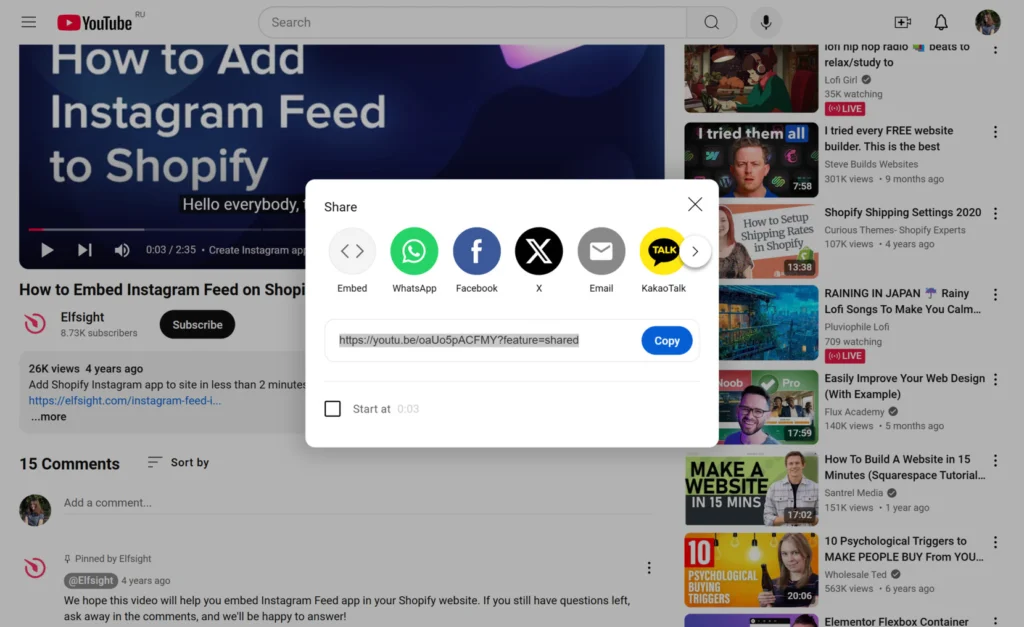
Sharing links in YouTube comments has limits. Comments can get lost in busy threads or removed by moderators. There are better ways to share your Instagram link on YouTube. These methods keep your link visible and easy to access for viewers. Explore these simple alternatives to comments for sharing your Instagram link effectively.
Using Video Descriptions
The video description is a great place to add your Instagram link. This section appears below your video and stays visible to all viewers. Write a short note about your Instagram and paste the link. Keep it clear and direct so viewers know where the link leads. Update the description for every video to keep the link fresh and relevant.
Leveraging Youtube Community Posts
YouTube Community posts let you connect with your subscribers outside videos. Share text, images, or links in these posts. Add your Instagram link here to reach your audience instantly. Community posts appear on your channel and subscriber feeds. Use this tool to promote your Instagram without waiting for video uploads.
Adding Links In Your Channel About Section
The About section on your channel is another spot for links. Edit this section to include your Instagram URL. This link stays on your channel page for all visitors to see. It builds trust and makes it easy for viewers to find your Instagram anytime. Keep your About page updated with the correct link.
Credit: elfsight.com
Frequently Asked Questions
How Can I Add Instagram Link To Youtube Comments?
To add your Instagram link, copy your profile URL and paste it into the YouTube comment box. Keep your comment relevant to avoid being flagged as spam.
Are Instagram Links Clickable In Youtube Comments?
No, Instagram links in YouTube comments are not clickable. Viewers must copy and paste the URL into their browser to visit your Instagram profile.
Can I Promote My Instagram In Youtube Comments Safely?
Yes, promote your Instagram by sharing your link politely and relevantly. Avoid spamming to prevent comment removal or account penalties.
Why Is My Instagram Link Not Showing In Youtube Comments?
YouTube may block or hide links if they seem spammy. Ensure your comment adds value and avoid posting too many links repeatedly.
Conclusion
Adding your Instagram link to YouTube comments helps grow your audience. It makes it easy for viewers to find your other content. Just follow simple steps to include the link correctly. Keep your comments clear and relevant to avoid being marked as spam.
This small action can build stronger connections with followers. Try it on your next video and watch your social profiles connect smoothly. Simple, effective, and worth the effort.