
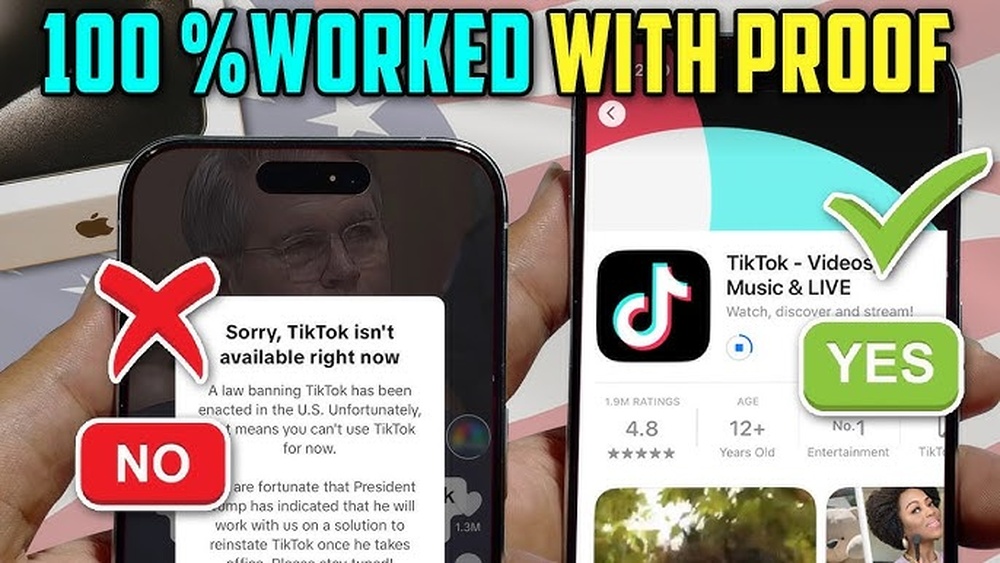
Have you ever opened your iPhone only to find TikTok missing? It’s frustrating when your favorite app suddenly disappears or stops working.
You might feel lost, wondering how to get TikTok back quickly and easily. Don’t worry—this guide is made just for you. By the end, you’ll know simple steps to restore TikTok on your iPhone and get back to scrolling, creating, and enjoying your favorite videos.
Keep reading, because your TikTok experience is about to get back on track.
Check App Store Availability
Before reinstalling TikTok on your iPhone, check if the app is available in the App Store. Sometimes, the app might not appear due to regional limits or store settings. Confirming its presence helps avoid confusion and saves time.
Search For Tiktok
Open the App Store on your iPhone. Tap the search tab at the bottom. Type “TikTok” in the search bar and hit enter. Look through the results carefully. If TikTok appears, you can download it again. If it does not, it may not be available in your region.
Verify Regional Restrictions
Some countries restrict TikTok from their App Store. To check this, go to your iPhone settings. Tap your Apple ID and select “Country/Region.” Ensure your location matches where TikTok is allowed. Change the region if needed, but note this may affect other apps. Regional rules can block TikTok downloads.

Credit: www.npr.org
Restart Your Iphone
Restarting your iPhone can fix many app issues, including TikTok problems. This simple step clears temporary glitches and refreshes your device. A restart often helps the app run smoothly again without further action.
There are two main ways to restart an iPhone. You can perform a soft restart or a force restart. Each method works differently, depending on the situation.
Soft Restart Steps
Press and hold the power button on your iPhone. On some models, hold the power button and volume down button together.
Wait for the “slide to power off” slider to appear on the screen. Slide it to turn off the device.
After the screen turns black, wait 10 seconds. Then, press and hold the power button again.
Release the button when the Apple logo appears. Your iPhone will restart and load the apps fresh.
Force Restart Method
Use this method if your iPhone is frozen or unresponsive. It forces the device to turn off and back on immediately.
For iPhone 8 or later: Quickly press and release the volume up button. Then, quickly press and release volume down.
Next, press and hold the side button until the Apple logo shows. Release the button and wait for the restart.
For iPhone 7 and 7 Plus: Press and hold the volume down and power buttons together. Keep holding until the Apple logo appears.
For iPhone 6s or earlier: Press and hold the home and power buttons together. Release them after the Apple logo appears.
Update Ios Version
Updating your iPhone’s iOS version can help fix many app problems. TikTok may not work well if your iOS is outdated. New updates often include bug fixes and improvements. These updates keep your device running smoothly and apps working properly.
Follow simple steps to check and install the latest iOS. It only takes a few minutes and can solve TikTok issues quickly.
Check For Software Updates
Open the Settings app on your iPhone. Scroll down and tap “General.” Choose “Software Update” to see if a new version is available. Your phone will search for updates automatically. If an update is ready, it will show on the screen. Check the details to see what the update includes. This step ensures your iPhone is up to date.
Install Latest Ios
Tap “Download and Install” if an update appears. You may need to enter your passcode to continue. Make sure your phone is connected to Wi-Fi and has enough battery life. The update will begin downloading and installing. Your iPhone will restart during the process. After the update, open TikTok to see if it works better. Installing the latest iOS keeps your phone secure and apps functional.

Credit: www.youtube.com
Reinstall Tiktok App
Reinstalling the TikTok app can fix many issues on your iPhone. Sometimes, the app may stop working correctly. Deleting and downloading it again often solves the problem quickly. Follow these simple steps to get TikTok back on your device.
Delete Tiktok
Press and hold the TikTok app icon on your iPhone screen. A small menu will appear. Tap on “Remove App” or the “X” symbol. Confirm that you want to delete the app. This action will remove the app and its temporary files.
Download And Install Again
Open the App Store on your iPhone. Use the search bar to type “TikTok.” Find the official TikTok app in the results. Tap the download button, which looks like a cloud with an arrow. Wait for the app to install completely. Once done, open TikTok and sign in with your account.
Clear App Store Cache
Clearing the App Store cache can solve many issues with downloading or updating apps like TikTok. The cache stores temporary data that helps the App Store run faster. Over time, this data can become outdated or corrupted. Clearing it refreshes the store and fixes many problems.
This process is quick and easy. It can make TikTok reappear on your iPhone if it has disappeared. Below are steps to clear the App Store cache effectively.
Reset App Store
Open the App Store on your iPhone. Tap any of the bottom menu icons 10 times quickly. This action clears the App Store cache. You will see the screen flash or refresh. After this, try searching for TikTok again. This method often resolves download issues.
Sign Out And Sign In
Go to the Settings app on your iPhone. Tap your name at the top to access Apple ID settings. Scroll down and tap Sign Out. Wait a moment, then sign in with your Apple ID again. This step refreshes your connection to the App Store. It can fix problems caused by account errors.
Check Internet Connection
Checking your internet connection is the first step to get TikTok back on your iPhone. A poor connection can stop the app from loading or working correctly. Simple fixes often solve the problem quickly. Make sure your phone is connected to the internet and the signal is strong.
Switch Between Wi-fi And Cellular
Try switching from Wi-Fi to cellular data or vice versa. Sometimes, one connection may have issues. Turn off Wi-Fi and use mobile data to see if TikTok works. If it does, the Wi-Fi network may be the problem. Switch back to Wi-Fi and check if the app loads properly.
Reset Network Settings
Resetting network settings can fix hidden issues. This step clears saved networks and passwords, so you need to reconnect later. Go to Settings > General > Reset > Reset Network Settings. Your iPhone will restart. After that, connect to Wi-Fi or cellular again. Open TikTok to see if the app works now.
Disable Restrictions And Screen Time
Sometimes TikTok stops working on your iPhone because of Restrictions or Screen Time settings. These features limit app use to help manage time or content. Disabling them can bring TikTok back to your device. Follow simple steps to check and change these settings.
Check Content Restrictions
Open the Settings app on your iPhone. Scroll down and tap on “Screen Time.” Next, choose “Content & Privacy Restrictions.”
Enter your Screen Time passcode if asked. Tap “Allowed Apps” to see which apps are restricted. Make sure TikTok is allowed here.
If TikTok is off, turn it on. This lets you use the app again. Also, check “Content Restrictions” for app ratings. TikTok might be blocked due to age limits. Adjust the settings to allow TikTok.
Adjust Screen Time Settings
In the Screen Time menu, select “App Limits.” Look for any limits set on TikTok or social media apps. If limits exist, delete or increase them.
Return to the main Screen Time page. Tap “Turn Off Screen Time” to remove all limits if you want. This action disables all restrictions and may fix TikTok issues.
After changes, restart your iPhone. Open TikTok to check if it works. These steps should help TikTok run smoothly again.
Credit: www.imyfone.com
Contact Apple Support
Contacting Apple Support can help solve issues with TikTok on your iPhone. Apple experts offer clear advice and solutions. They guide you step-by-step to get TikTok working again. This support ensures your device works smoothly.
Use Apple Support App
The Apple Support app gives quick access to help. Download it from the App Store if not installed. Open the app and choose your iPhone. Select the TikTok app issue or a related category. Follow instructions to chat, call, or schedule a repair. The app also shows useful tips and updates.
Visit Apple Store
Visit an Apple Store for face-to-face help. Apple technicians can check your iPhone and TikTok app. They diagnose problems that apps or updates cause. Bring your device and any purchase info. Staff may fix the issue or suggest next steps. Booking an appointment online saves waiting time.
Frequently Asked Questions
How Do I Reinstall Tiktok On My Iphone?
Open the App Store, search for TikTok, and tap the download button. Ensure your iPhone has enough storage space before reinstalling. Use a stable internet connection for a smooth download.
Why Is Tiktok Not Showing On My Iphone App Store?
TikTok might be restricted in your region or removed temporarily. Check your App Store region settings or wait for availability. Also, ensure your iOS version supports the app.
How Can I Update Tiktok On My Iphone?
Go to the App Store, tap your profile icon, and scroll to updates. Find TikTok and tap ‘Update’ if available. Regular updates improve app performance and security.
What To Do If Tiktok Crashes On Iphone?
Restart your iPhone and update TikTok to the latest version. Clear app cache or reinstall if crashes persist. Ensure your iOS is current for compatibility.
Conclusion
Getting TikTok back on your iPhone can be simple. Follow the steps carefully and stay patient. Restart your phone and check your internet connection first. Reinstall the app from the App Store if needed. Make sure your iPhone’s software is up to date.
If problems continue, try resetting your settings. These tips help most users fix TikTok issues fast. Stay calm and try each step one by one. Soon, you will enjoy TikTok again without trouble. Keep your phone updated to avoid future problems.
Easy fixes often solve the issue quickly.


