
Are you ready to take control of your online presence and delete your Facebook account? Whether you want a fresh start, more privacy, or just need a break from social media, deleting your Facebook account can be a powerful step.
But how exactly do you do it without losing important data or facing unexpected issues? In this guide, you’ll discover simple, step-by-step instructions to delete your Facebook account safely and confidently. Keep reading, and by the end, you’ll know exactly what to do to regain your digital freedom.
Difference Between Deactivation And Deletion
Many people confuse Facebook account deactivation with deletion. Both options stop your profile from being visible. Yet, they work in very different ways. Understanding these differences helps you choose the best option for your needs.
What Is Deactivation?
Deactivation temporarily disables your Facebook account. Your profile and posts become invisible to others. Facebook saves your data. You can reactivate anytime by logging back in. Friends cannot see your account during deactivation.
What Is Deletion?
Deletion permanently removes your Facebook account. All your data, photos, and messages are deleted. You cannot recover your account after deletion. Facebook takes up to 30 days to erase everything. After that, your profile is gone forever.
Key Differences Between Deactivation And Deletion
Deactivation is temporary and reversible, hiding your Facebook account and keeping data safe. Deletion is permanent, erasing all data and ending your presence.
Credit: www.businessinsider.com
Backup Your Facebook Data
Backing up your Facebook data is important before deleting your account. This step saves your photos, messages, and posts. You keep memories and important information safe. The backup file lets you access your data anytime. It also helps if you change your mind later.
How To Request Your Facebook Data
Go to Facebook settings. Find the section called “Your Facebook Information.” Click on “Download Your Information.” Choose the data you want to save. Select the format and quality. Click “Create File” to start the process.
Where To Find Your Downloaded Facebook Data
Facebook will notify you when your file is ready. Go back to “Download Your Information.” Click on “Available Copies.” Download the file to your device. Save it in a safe folder for future use.
Tips For Managing Your Facebook Backup
Keep your backup file secure. Use a password-protected folder or external drive. Check the file size before downloading. Large files take longer to save. Regularly update your backup to include new data.
Steps To Delete Your Facebook Account
Deleting your Facebook account takes a few clear steps. Follow each step carefully to complete the process. This guide breaks down the steps to help you delete your Facebook account with ease.
Accessing Account Settings
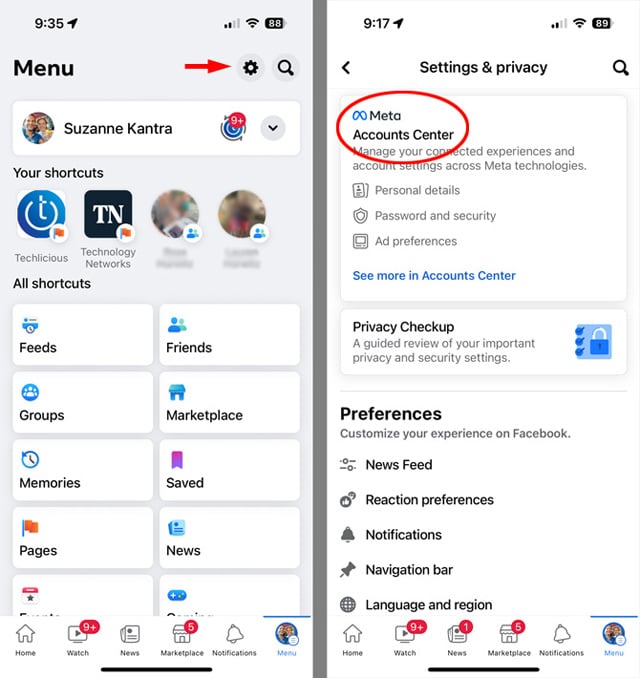
First, log in to your Facebook account. Look for the downward arrow at the top right corner. Click it to open a menu. Choose “Settings & Privacy” from the list. Then select “Settings” to open your account settings page.
Navigating To Account Deletion
On the left side, find and click “Your Facebook Information.” Look for the option called “Deactivation and Deletion.” Click it to see options about your account status. Select “Delete Account” and then click “Continue to Account Deletion.”
Confirming Deletion Request
Facebook will ask for your password to confirm. Enter your password carefully. Read the warnings about losing access and data. Choose if you want to download your info first. Click “Delete Account” to complete the request.
Credit: www.techlicious.com
What Happens After Deletion
Deleting a Facebook account is a serious step. It means you want to remove your presence from the platform. But what happens after you delete your account? Understanding the process helps you know what to expect.
Deletion Timeline
Once you start deleting your Facebook account, the process does not end immediately. Facebook waits for 30 days before final deletion. During this time, you can still cancel the deletion if you change your mind. After 30 days, your account and all data are permanently removed. You lose access to your profile, messages, and posts.
Data Removal Process
Facebook takes extra time to delete all your data from its servers. It can take up to 90 days to erase everything completely. Some information may remain in backup storage for safety reasons. This data is not available to other users during this time. Facebook also removes your data from search engines and third-party apps linked to your account.
Reactivate During Grace Period
When you delete a Facebook account, there is a grace period. During this time, you can still change your mind. The account is not gone immediately. Facebook holds your data for a short time before permanent deletion.
This grace period usually lasts 30 days. You can log back in and reactivate your account. Reactivating cancels the deletion request. Your profile and all information return as before.
How To Reactivate Your Facebook Account
Simply log in to your Facebook account. Use your usual email and password. Facebook will ask if you want to cancel deletion. Confirm the cancellation to restore your account.
Time Limit For Reactivation
You have 30 days after requesting deletion. After 30 days, Facebook deletes your account permanently. No recovery is possible after this time. Act quickly if you want to keep your data.
What Happens After Reactivation
Your profile becomes active again. All friends, posts, and photos return. You can use Facebook normally. The deletion request is fully canceled.
Deleting Facebook From Mobile Apps
Deleting Facebook from your mobile apps helps free up space and reduce distractions. You may want to remove the app to take a break or protect your privacy. The process differs slightly between Android and iOS devices. Below are clear steps to delete the Facebook app on both platforms.
Using Android Devices
Open the Settings app on your Android device. Scroll down to find “Apps” or “Apps & notifications.” Tap on it to see a list of installed apps. Find and select “Facebook” from the list. Tap “Uninstall” to remove the app from your device. Confirm the action if asked. The Facebook app will delete, freeing storage space.
Using Ios Devices
Locate the Facebook app icon on your iPhone or iPad home screen. Press and hold the icon until a menu appears or the icons start to jiggle. Tap the “Remove App” or “Delete App” option. Confirm by tapping “Delete” again. The Facebook app will be removed from your iOS device immediately.
Alternatives To Complete Deletion
Deleting a Facebook account permanently is a big step. Many users want to pause their activity without losing data. Facebook offers options that let you take breaks or keep control of your information. These alternatives help you manage your presence online without full deletion.
Temporarily Deactivate Account
Deactivating your account hides your profile and posts. Friends cannot see your timeline or search for you. You can return anytime by logging back in. Your data stays saved, so nothing is lost. This option suits those needing a break from Facebook.
Adjusting Privacy Settings
Change who sees your posts or personal details. Limit your profile visibility to friends or only you. Control who can send you friend requests and messages. Adjust settings to stop apps from accessing your data. Privacy controls help keep your account safe without deleting it.

Credit: www.avg.com
Frequently Asked Questions
How Do I Permanently Delete My Facebook Account?
To permanently delete your Facebook account, go to Settings, select “Your Facebook Information,” then “Delete Your Account. ” Confirm your choice and enter your password. Facebook delays deletion for 30 days in case you change your mind. After that, your account and data are removed permanently.
Can I Deactivate Instead Of Deleting My Facebook Account?
Yes, deactivation temporarily disables your Facebook account. Your profile and data are hidden but saved. You can reactivate anytime by logging back in. Deletion removes your account and data permanently, which cannot be undone.
What Happens To My Data After Facebook Deletion?
Once you delete your Facebook account, your data is removed from Facebook servers after 30 days. Some backup copies may remain for legal reasons but are inaccessible. Your photos, posts, and messages will no longer be available to you or others.
How Long Does Facebook Take To Delete An Account?
Facebook takes 30 days to delete your account after the deletion request. During this period, you can cancel the deletion by logging back in. After 30 days, your account and data are permanently erased and cannot be recovered.
Conclusion
Deleting your Facebook account is simple and clear. You control your online presence. Take your time to back up important data first. Follow the steps carefully to avoid mistakes. Once done, your account will no longer be active. Enjoy the freedom from social media distractions.
Remember, you can always create a new account later. Your privacy and peace of mind matter most. Stay safe and confident online.


