Are you ready to share your story, talent, or ideas with the world? Uploading a video to YouTube is the first step to making that happen.
But if you’ve never done it before, the process might feel confusing or overwhelming. Don’t worry—this guide breaks it down into simple, clear steps you can follow right now. By the end, you’ll know exactly how to get your video online and start reaching your audience.
Let’s dive in and make your content shine!
Create A Youtube Account
Creating a YouTube account is the first step to upload videos. Without an account, you cannot share your content on YouTube. Setting up your account is quick and free. This allows you to manage your videos and interact with viewers easily.
Sign Up With Google
You need a Google account to use YouTube. If you already have one, you can sign in directly. New users must create a Google account first. Visit the Google sign-up page and fill in your details. Choose a strong password to keep your account safe. After signing up, you can use the same account for all Google services.
Set Up Your Channel
Once signed in, create your YouTube channel. This channel holds all your uploaded videos. Click on your profile picture and select “Create a channel.” Enter your channel name and customize it. Add a profile picture and description. This helps viewers know what your channel is about. Your channel is ready for video uploads and sharing.
Credit: studio.support.brightcove.com
Prepare Your Video
Preparing your video is an important step before uploading it to YouTube. Good preparation helps your video look professional and reach more viewers. It starts with making sure the file is in the correct format and ends with checking the quality through editing.
Choose The Right Format
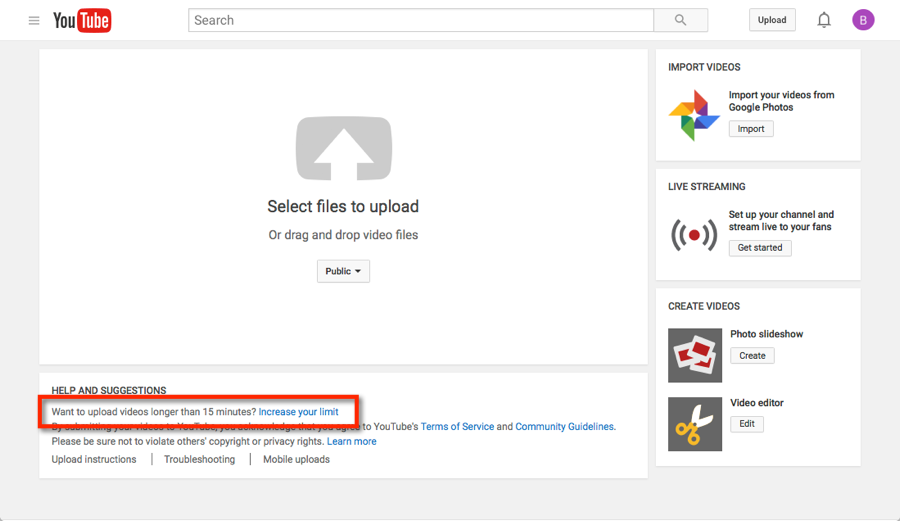
Pick a video format that YouTube supports well. MP4 is the most popular choice because it balances quality and file size. Other accepted formats include MOV, AVI, and WMV. Saving your video in the right format prevents upload errors and ensures smooth playback.
Edit For Quality
Editing improves the final look of your video. Cut out unwanted parts to keep viewers interested. Add clear audio and bright visuals. Adjust brightness and contrast to make images sharp. Good editing makes your video easier to watch and more appealing.
Access The Upload Page
Uploading a video to YouTube starts with accessing the upload page. This step is simple but important. It lets you add your video to the platform. Follow these steps to reach the upload page quickly.
Log In To Youtube
First, open the YouTube website in your browser. Then, click the “Sign In” button at the top right corner. Enter your email and password. This signs you into your YouTube account. Without logging in, you cannot upload videos.
Find The Upload Button
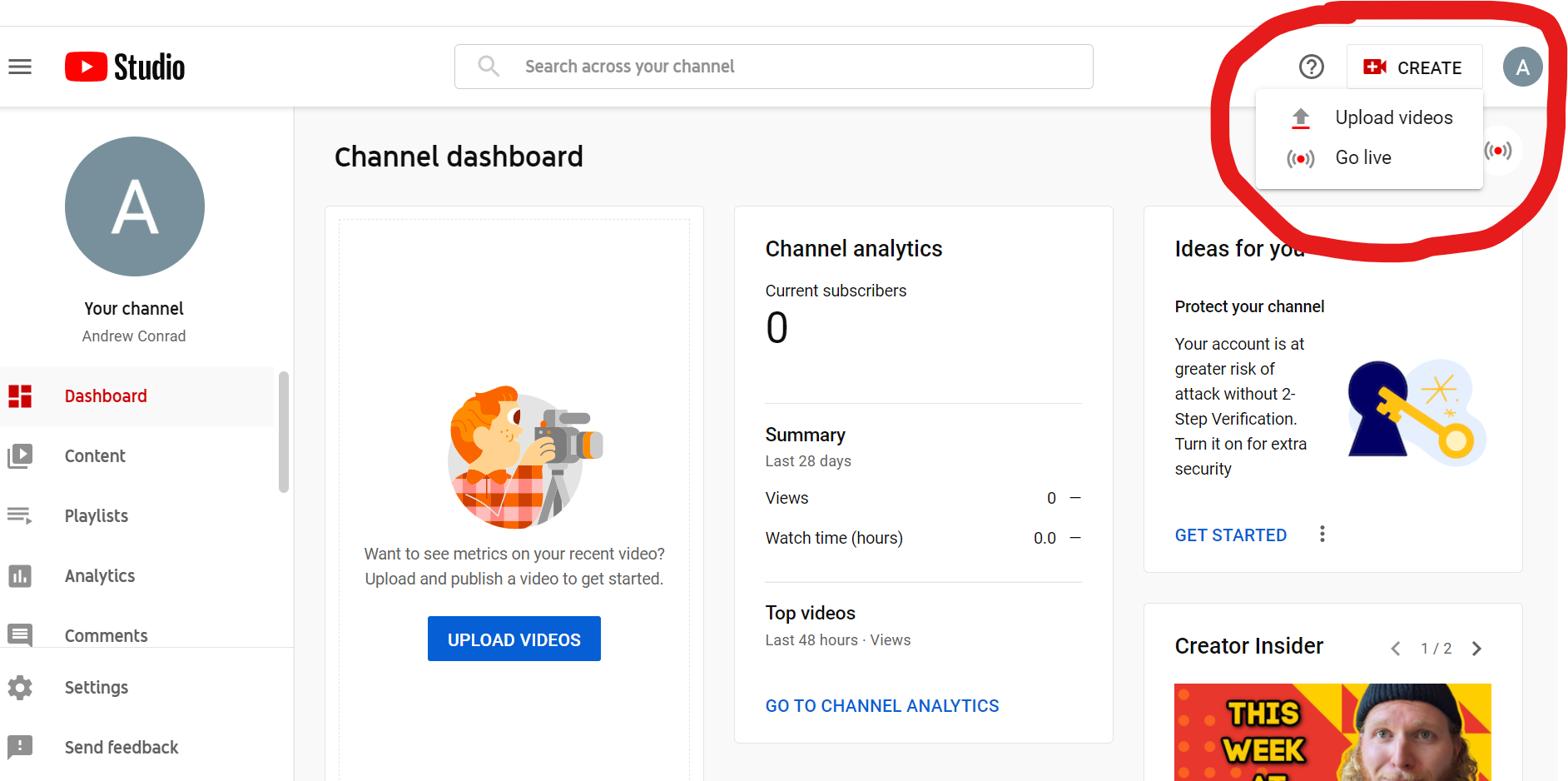
After logging in, look for the upload button. It appears as a camera icon with a plus sign. You can find it near the top right of the page. Click this button to open the upload page. This is where you start uploading your video file.
Upload Your Video
Uploading your video to YouTube is a simple process. It helps share your content with the world quickly. You only need a few steps to get started.
First, prepare your video file and have it ready on your device. Next, follow the upload instructions carefully. This ensures your video appears correctly on your channel.
Select The Video File
Begin by clicking the upload button on YouTube’s homepage. It looks like a camera icon with a plus sign. A window will open for you to choose your video file.
Find the video on your computer or mobile device. Click on the file to select it. Then, press the “Open” button to start uploading.
Make sure your video format is supported by YouTube. Common formats include MP4, MOV, and AVI. This avoids upload errors and delays.
Monitor Upload Progress
After selecting the file, the upload begins immediately. A progress bar shows how much of your video is uploaded. Watch this bar to know when the upload finishes.
Keep your internet connection stable during the upload. Interruptions can cause the process to stop or fail. Wait patiently until the progress reaches 100%.
YouTube will also process your video after uploading. This step prepares your video for playback in different qualities. Wait for this to complete before sharing your link.
Add Video Details
After uploading your video file to YouTube, the next step is to add important details. These details help viewers find and understand your video. Filling out this information correctly can improve your video’s reach and engagement.
Write A Catchy Title
The title is the first thing viewers see. Keep it clear and interesting. Use words that describe your video well. Avoid long titles; aim for about 60 characters. Include keywords people might search for.
Create An Engaging Description
The description gives more information about your video. Write a short summary that explains what the video is about. Add important details or links if needed. Use simple sentences and keywords to help with search results.
Use Relevant Tags
Tags help YouTube understand your video’s content. Add words related to your topic. Use a mix of broad and specific tags. This helps your video appear in more searches. Choose tags that match your title and description.
Credit: www.howtogeek.com
Customize Video Settings
Customizing your video settings on YouTube helps your video reach the right audience. It also improves how your video looks and performs. These settings are important before you publish your video.
Choose Privacy Options
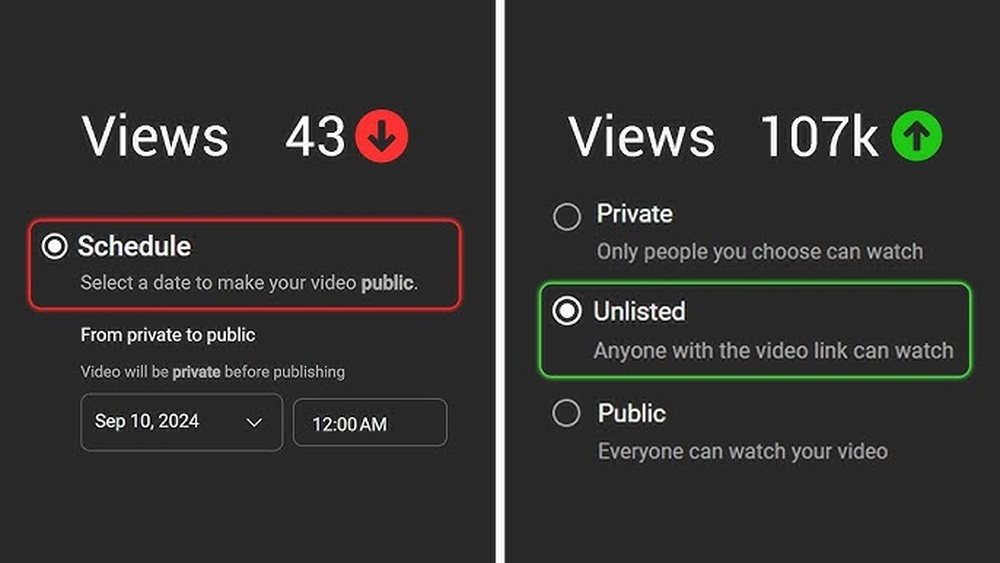
Privacy options control who can see your video. You can select Public to share with everyone. Private means only you and chosen people can view it. Unlisted lets anyone with the link watch your video.
Pick the option that fits your video’s purpose. This choice affects your video’s visibility and sharing.
Select A Thumbnail
A thumbnail is the image viewers see before playing your video. Choose a clear and attractive thumbnail to catch attention. YouTube offers automatic thumbnails or you can upload your own.
Pick a thumbnail that best represents your video content. This helps increase clicks and views.
Add To Playlists
Playlists group your videos into categories. Adding your video to a playlist helps viewers find related content. It also keeps viewers watching longer on your channel.
Select an existing playlist or create a new one. This improves your channel’s organization and user experience.
Publish And Share
Publishing and sharing your YouTube video is the final step to reach your audience. This part helps your video get seen by many people. Proper timing and sharing can increase views and engagement.
Set Publishing Time
You can choose when your video goes live. Click the “Schedule” option during upload. Pick the date and time that fits your audience best. This helps your video appear when viewers are online. Scheduling also keeps your channel active without manual work.
Share On Social Media
Sharing your video on social media platforms boosts visibility. Copy the video link after publishing. Post it on Facebook, Twitter, Instagram, or LinkedIn. Write a short description to catch attention. Encourage friends and followers to watch and share. This spreads your video beyond YouTube.
Credit: www.getapp.com
Manage Your Videos
Managing your videos on YouTube is important to keep your channel organized and attractive. After uploading, you can change details and see how your videos perform. These steps help you improve your content and reach more viewers. Let’s explore how to manage your videos effectively.
Edit Video Details
Go to YouTube Studio to edit your video details. You can change the title, description, and tags. A clear title helps viewers find your video. A good description explains what the video is about. Tags help YouTube show your video to the right audience. You can also choose a thumbnail. This is the picture viewers see before clicking. A good thumbnail can increase views.
Check Analytics
YouTube provides data about how your videos perform. You can see views, watch time, and audience details. This helps you understand what your viewers like. Check which videos get more views and keep people watching. Use this information to create better videos in the future. Analytics also show where your viewers come from. Knowing your audience helps you make videos they enjoy.
Frequently Asked Questions
How Do I Upload A Video To Youtube?
To upload a video, sign in to your YouTube account. Click the camera icon with a plus sign, select “Upload video,” then choose your file. Add a title, description, and tags. Finally, select visibility and click “Publish. “
What Video Formats Are Supported By Youtube Uploads?
YouTube supports formats like MP4, MOV, AVI, WMV, and FLV. For best results, use MP4 with H. 264 video codec and AAC audio. This ensures your video uploads smoothly and maintains good quality on the platform.
Can I Upload Videos From My Mobile Device?
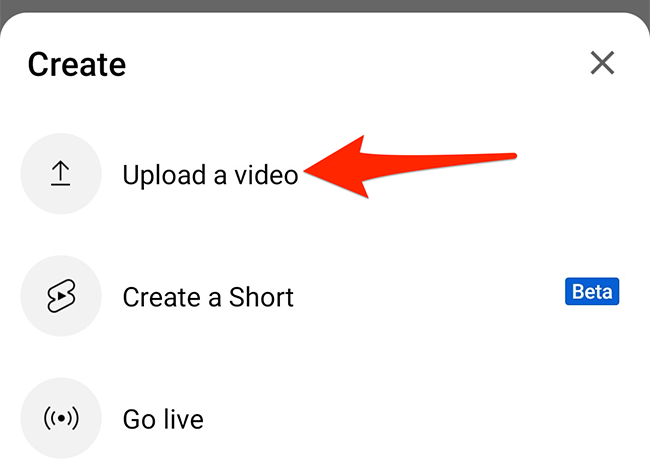
Yes, you can upload videos via the YouTube app on iOS or Android. Open the app, tap the plus (+) icon, select “Upload a video,” choose your file, and follow the prompts to publish it directly from your phone.
How Long Does It Take To Upload A Video On Youtube?
Upload time depends on your file size and internet speed. Small videos take seconds, while large HD files may take several minutes. A stable, fast connection helps speed up the process and ensures successful uploads.
Conclusion
Uploading a video to YouTube is simple and fast. Just sign in, click the upload button, and choose your file. Add a title, description, and tags to help people find your video. Select privacy settings before you publish. After uploading, share your video with friends or on social media.
Keep practicing to get better at it. Soon, creating and sharing videos will feel natural. Start today and enjoy sharing your stories with the world.