How to Search Keywords on Web Page

Have you ever landed on a long web page and struggled to find the exact word or phrase you need? It can be frustrating and time-consuming to scroll through endless text.
But what if there was a quick and simple way to locate keywords instantly? Knowing how to search keywords on a web page can save you precious minutes and boost your productivity. You’ll discover easy methods that anyone can use right now.
Keep reading, and you’ll never waste time hunting for information again.
Use Browser Search Tools
Using browser search tools makes finding keywords on a web page fast and simple. These tools highlight the words you want to find. They save time and avoid scrolling through all the text. Most browsers have built-in search features easy to access.
Keyboard Shortcuts For Quick Search
Press Ctrl + F on Windows or Command + F on Mac. A search box appears at the top or bottom of the browser. Type the keyword you want to find. The browser highlights all matches on the page. Use the arrows next to the box to jump between results. This shortcut works in Chrome, Firefox, Edge, and Safari.
Accessing Search In Browser Menus
Click the browser menu icon, usually three dots or lines. Find the “Find” or “Find on page” option. Selecting it opens the search box. Enter your keyword to see all highlighted matches. This method helps if keyboard shortcuts do not work. It works the same across most browsers.

Credit: hingemarketing.com
Leverage Advanced Search Features
Advanced search features help you find keywords faster on a web page. They improve the accuracy of your search. Using these tools saves time and effort. You can pinpoint exact words or phrases without scrolling endlessly.
Case Sensitivity And Whole Word Search
Case sensitivity means the search matches uppercase and lowercase letters exactly. Searching for “Apple” finds only “Apple,” not “apple” or “APPLE.” This is useful when the word’s case changes its meaning.
Whole word search finds only complete words. It avoids parts of other words. For example, searching “cat” won’t show “catalog” or “scatter.” This feature keeps results relevant and clear.
Using Search Highlights And Navigation
Search highlights show all keyword matches in color. This helps you see where the word appears quickly. You don’t need to guess or reread the whole page.
Navigation arrows let you jump between keyword matches. Move up or down to each highlight easily. This feature speeds up scanning and reviewing content.
Employ Browser Extensions
Using browser extensions makes finding keywords on a web page easier and faster. These tools highlight words, count their frequency, and help you spot important terms. Extensions work directly in your browser, so you do not need extra software.
They save time by showing keywords instantly. You can analyze pages quickly without copying text. Many extensions also offer extra features to improve your search experience.
Popular Extensions For Keyword Search
Some extensions stand out for keyword searching. “Keywords Everywhere” shows keyword data right on the page. “Word Count Tool” highlights and counts words easily. “SEOquake” offers detailed keyword analysis and page info. These tools work on popular browsers like Chrome and Firefox.
They are simple to install. After adding them, open a web page and start searching keywords instantly. Each extension has unique features to help you find keywords better.
Customizing Search With Extensions
Many extensions let you customize how keywords appear. You can change highlight colors to spot words fast. Some allow filtering common words or setting minimum word length. This helps focus on important keywords only.
You can also adjust search scope. Choose to search only visible text or the entire page source. These options refine keyword search results. Custom settings make keyword finding more precise and user-friendly.
Search Within Page Source
Searching keywords within a web page’s source can reveal much more than just visible text. The page source contains all the HTML code that builds the website. It often holds extra keywords hidden from the regular view. These keywords help search engines rank the page better.
Knowing how to view and search inside the page source is a useful skill. It helps understand how websites use keywords and what content they prioritize. This method can also uncover SEO strategies behind a page.
Viewing Page Source Code
To see the page source code, right-click anywhere on the web page. Choose “View Page Source” or “View Source” from the menu. A new tab will open showing the full HTML code.
The code looks complex but is just text. You can scroll through it or use the search function (Ctrl + F or Command + F) to find specific words. This method helps locate keywords that are part of the code but not visible on the page.
Finding Hidden Keywords
Hidden keywords may appear in meta tags, alt text, or comments. They often include terms important for SEO but not shown to visitors. Search for words like “keywords,” “description,” or simply the target keyword.
Look inside meta tags in the head section. These tags provide extra information to search engines. Also, check image alt attributes. They describe images and often contain relevant keywords.
Comments in the code might hold notes or extra keywords too. Use the search tool to find these hidden words quickly. This approach reveals how keywords are used beyond the visible page.
Utilize Mobile Browser Search
Using mobile browser search helps find keywords quickly on any web page. It saves time and effort by highlighting words directly on your screen. This method works on most smartphones and tablets.
Every mobile browser has a built-in search feature. It lets you type a word or phrase to locate it on the current page. This feature is useful for reading articles, checking facts, or studying content.
Searching Keywords On Mobile Devices
Open your mobile browser and load the web page. Tap the menu icon, usually three dots or lines. Select “Find on page” or “Search on page” from the menu. A search bar will appear at the top or bottom.
Type the keyword you want to find. The browser will highlight all matches on the page. Use arrows to jump between each highlighted word. This makes reading and scanning easier.
Tips For Effective Mobile Search
Use simple and clear keywords for faster results. Avoid long phrases that may not match exactly. Try different word forms or synonyms to find more matches.
Zoom in if the text looks small. It helps see the highlights clearly. Scroll carefully to avoid missing results. Clear the search bar to stop highlighting.

Credit: www.asclique.com
Optimize Search With External Tools
Optimizing keyword search on a web page can be much easier with external tools. These tools help find the right words quickly. They save time and improve accuracy. Using these tools makes your search more effective and helps you understand the content better.
Using Online Keyword Search Tools
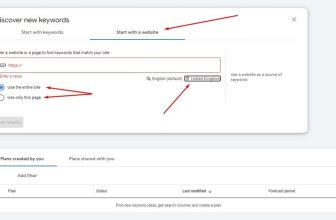
Online tools let you enter a web page URL or text. They show the most common keywords found on the page. Some tools also show keyword density. This tells how often a word appears. Tools like Google Keyword Planner and Ubersuggest are popular choices. They help find keywords that match your topic. These tools also suggest related words to expand your search.
Combining Tools For Better Results
Using more than one tool gives better insights. Each tool has unique features and data. One might find keywords the other misses. Combining results helps create a complete list of keywords. You can compare keyword popularity and relevance across tools. This method helps spot trends and find the best keywords faster.

Credit: seekfast.org
Frequently Asked Questions
How Do I Search Keywords On A Web Page?
Press Ctrl + F (Cmd + F on Mac) to open the search bar. Type your keyword to find it instantly on the page.
What Tools Help Find Keywords On A Webpage?
Browser search bars and extensions like “Find in Page” help locate keywords quickly and efficiently on any webpage.
Can I Search Keywords On Mobile Browsers?
Yes, most mobile browsers have a “Find on Page” feature accessible via the menu, allowing keyword searches easily.
Why Is Searching Keywords On A Webpage Useful?
It saves time by quickly locating specific information. This improves reading efficiency and helps gather relevant data faster.
Conclusion
Searching keywords on a web page saves time and effort. Use simple tools like browser search or extensions. Focus on clear, specific words to find what you need fast. Practice searching regularly to improve your skill. This method helps with reading, research, and work tasks.
Keep it easy and quick. You will find information without hassle. Try these tips next time you browse a page. It makes online searching smooth and effective.