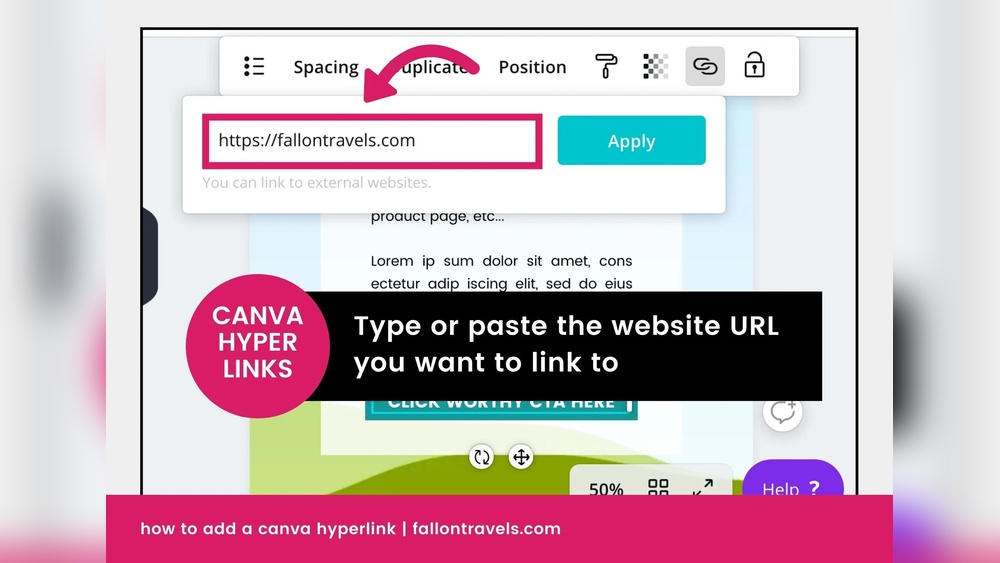
Are you struggling to find the image link for your Canva design? You’re not alone.
Whether you want to share your design quickly or use the image on other platforms, knowing how to get the image link is a game-changer. You’ll discover simple steps that anyone can follow to grab your Canva image link fast.
By the end, you’ll save time and share your creations with ease. Ready to unlock this handy trick? Let’s dive in!
Accessing Your Canva Design
Accessing your Canva design is the first step to get an image link. It is simple and quick. Follow clear steps to open your design and prepare it for sharing.
Logging Into Canva
Start by opening the Canva website or app. Enter your email and password to log in. You can also use Google or Facebook to sign in. Make sure you use the correct account linked to your designs.
After logging in, you will see your Canva dashboard. This is where all your projects are saved. Take a moment to familiarize yourself with this space.
Opening Your Project
Find the design you want to share in your dashboard. Click on the project thumbnail to open it. The design will load in the editor window.
Check your design to confirm it is the correct file. Now you are ready to get the image link from Canva easily.
Preparing Your Image For Sharing
Preparing your image for sharing is a key step before getting the image link from Canva. It ensures your design looks perfect and fits the platform where you want to share it. Taking time to polish your image avoids issues later.
Pay close attention to details. A well-prepared image attracts more views and clicks. Follow simple steps to make your design clear and ready for sharing.
Finalizing Design Elements
Check all parts of your design carefully. Make sure texts are easy to read and colors match well. Look at images and icons for clarity. Remove any extra items that clutter the design. Confirm alignment and spacing are even. This makes your image neat and professional.
Checking Image Dimensions
Verify the size of your image. Different platforms need different sizes. Choose the right dimensions for the place you want to share. Canva shows size details on the top bar. Resize if needed to avoid blurry or cut-off images. Proper size helps your image display correctly everywhere.
Generating The Image Link
Generating the image link from Canva is a simple process. It allows you to share your design easily. You can send the link to others or use it online. Follow these steps to get the image link quickly.
Using The Share Button
Open your design in Canva. Look for the Share button at the top right corner. Click on it to open sharing options. This button lets you control how others see your design. It is the first step to generate your image link.
Choosing Link Sharing Options
After clicking Share, you see several options. Select Anyone with the link to make your design accessible. Choose View to allow others only to see the design. Do not select edit unless you want others to change it. This step controls who can access your image link.
Copying The Direct Image Link
Once the link sharing is set, click Copy link. This copies the URL to your clipboard. Paste it in your blog, email, or social media. The link directs viewers straight to your Canva image. Use this link to share your work easily.

Credit: www.canva.com
Sharing Your Canva Image Link
Sharing your Canva image link is simple and fast. You can share your design directly from Canva with others. This helps you show your work without downloading or sending large files. There are several ways to share your Canva image link, each suited for different needs.
Sharing Via Email And Social Media
To share your Canva image link by email, open your design. Click the Share button at the top right. Choose the option to get a shareable link. Copy the link and paste it into your email.
You can also post this link on social media platforms. Paste the link in your post or message. Your friends or followers will see your image directly. This method keeps your design clear and easy to access.
Embedding The Image Link
Embedding your Canva image link lets you add your design to websites or blogs. Get the shareable link from Canva as before. Use the HTML tag or an embed option if available.
Embedding shows your design inside a web page. Visitors can view your image without leaving the site. This works well for portfolios or online presentations.
Using Link In Other Platforms
Many platforms allow you to add links, like forums or chat apps. Copy your Canva image link and paste it where links are supported. This shares your design quickly and keeps file size small.
Using links avoids uploading images directly. It is easier and saves space. Your image stays updated if you edit it later in Canva.
Troubleshooting Link Issues
Troubleshooting link issues in Canva is common. Sometimes, the image link does not work as expected. This section helps solve common link problems quickly. Follow these tips to ensure your Canva image links work smoothly.
Link Not Working
Check the link carefully. Make sure it is complete and copied fully. Partial links cause errors. Try opening the link in a different browser. Clear your browser cache and refresh the page. Sometimes, simple steps fix link problems.
Access Permissions
Check who can view your Canva design. Private designs block others from seeing your image. Change sharing settings to “Anyone with the link” to allow access. Make sure permissions are set before sharing the link. Otherwise, viewers get an error message.
Link Expiration
Some Canva links expire after time. Confirm if your link has a time limit. If expired, generate a new link to share. Keep track of link expiration to avoid access issues. Renew links regularly for uninterrupted sharing.

Credit: www.canva.com
Tips For Efficient Image Sharing
Sharing images from Canva can be simple and quick. Using smart methods saves time and keeps your work organized. Follow these tips to share your image links efficiently. They help you manage links and protect your designs.
Shortening Links
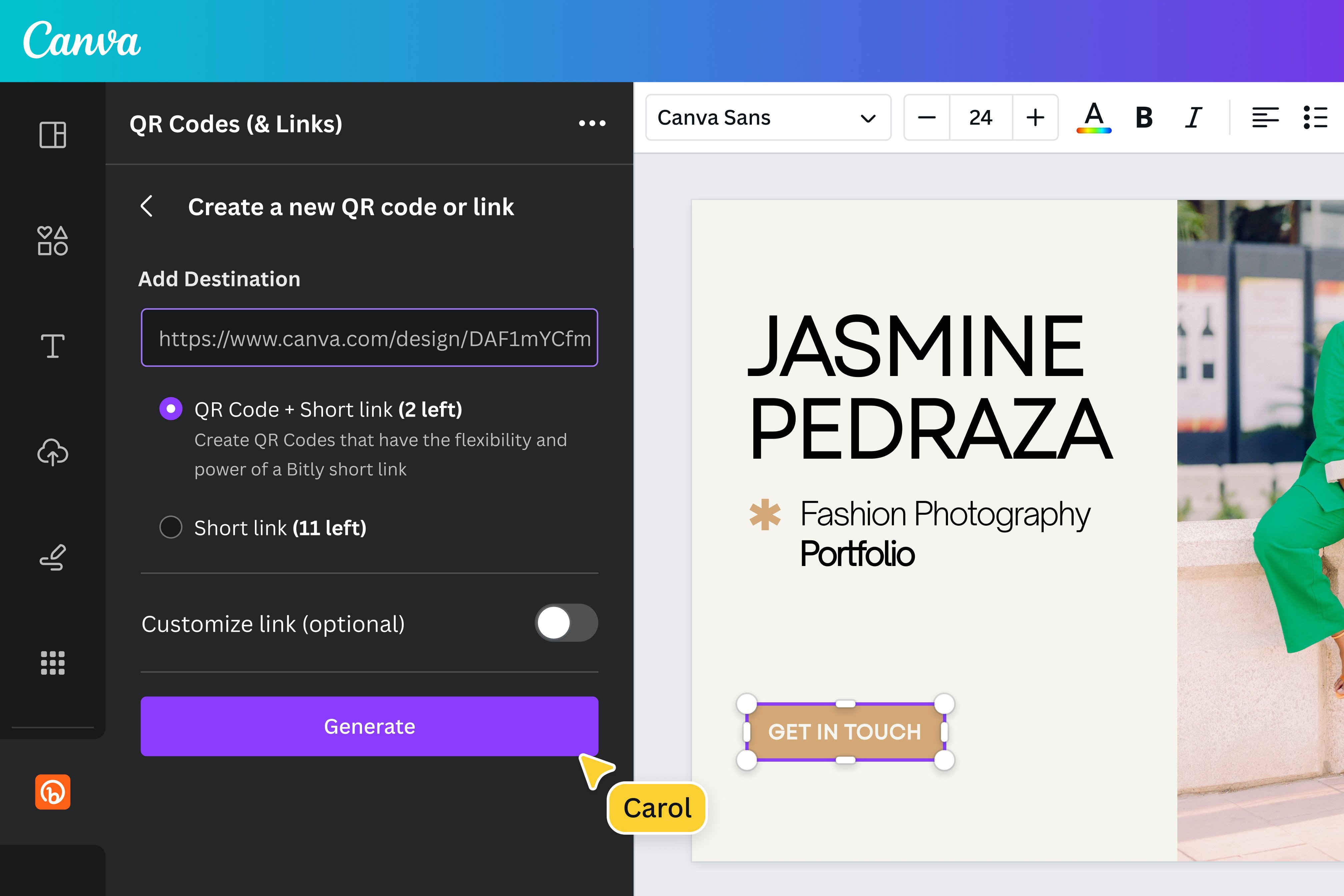
Long links can look messy and are hard to share. Use link shorteners like Bitly or TinyURL to make links neat. Short links are easier to copy and paste. They also fit better in messages and posts.
Organizing Shared Links
Keep track of your shared links in one place. Use a spreadsheet or a note app to list all links. Add details like image name and sharing date. This helps you find links fast when needed.
Maintaining Privacy Settings
Control who can see your Canva images. Adjust privacy settings before sharing links. Choose options like “View only” or “Edit” carefully. Protect your work from unwanted changes or views.
Credit: www.canva.com
Frequently Asked Questions
How Can I Get An Image Link From Canva?
To get an image link from Canva, first export your design as an image. Then upload it to an image hosting site or Canva’s share feature. Copy the direct link provided to share or embed the image easily.
Can I Share Canva Images With A Direct Url?
Yes, you can share Canva images using a direct URL. Use Canva’s “Share” option to generate a view-only link. This allows others to see your design without downloading it.
Is It Possible To Get A Public Image Link From Canva?
Canva itself doesn’t provide permanent public image URLs. Export your image and upload it to platforms like Imgur or Google Drive to create a public link.
What Formats Support Image Linking In Canva?
Canva supports exporting images in PNG, JPG, and PDF formats. For image linking, PNG and JPG are preferred as they are widely supported for web use.
Conclusion
Getting an image link from Canva is simple and fast. Just follow the steps carefully. Share your designs easily with others online. This helps you save time and effort. Use the link in emails, websites, or social media. Keep your work organized and accessible anytime.
Practice a few times to feel confident. Canva makes sharing your images smooth and clear. Now, you can share your creativity with the world.