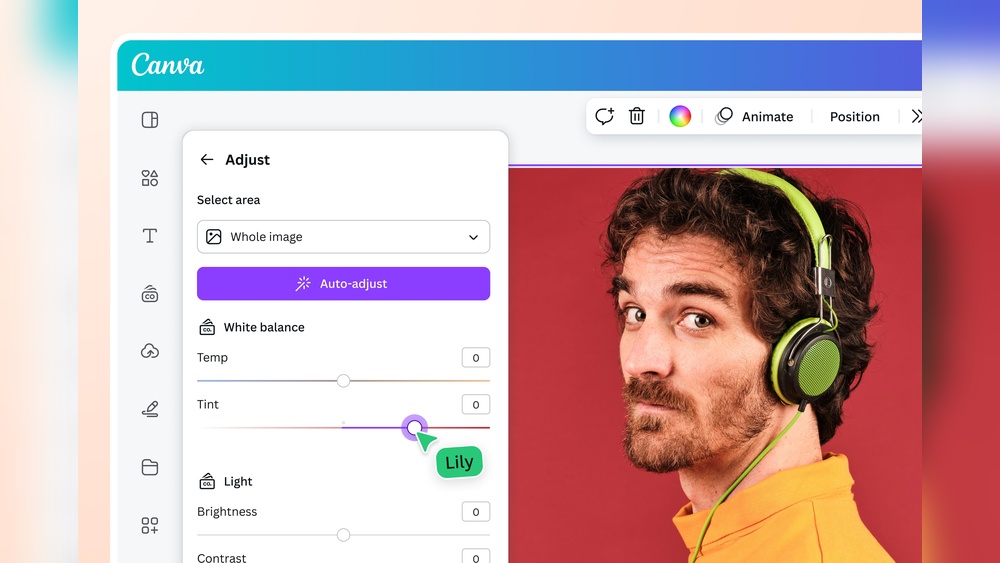
Have you ever created a design in Canva and wished you could quickly swap one color for another? Maybe you want your logo to match your brand colors perfectly or give your project a fresh new look without starting from scratch.
Changing colors in Canva is easier than you think, and once you master this simple trick, your designs will look more professional and eye-catching. Keep reading, and you’ll discover exactly how to change one color to another in Canva, step by step—making your creative process smoother and faster.
Credit: www.bigcatcreative.com
Accessing The Color Tool
Changing colors in Canva is simple once you find the color tool. This tool lets you pick any color in your design and change it fast. Knowing how to access this tool saves time and helps your project look great.
Opening Your Design
Start by logging into your Canva account. Choose the design you want to edit from your projects. Click on it to open the design editor. The editor shows your full design and tools around it.
Make sure your design is fully loaded before moving on. This way, all colors and elements appear correctly. You can now start working on the colors you want to change.
Locating The Color Picker
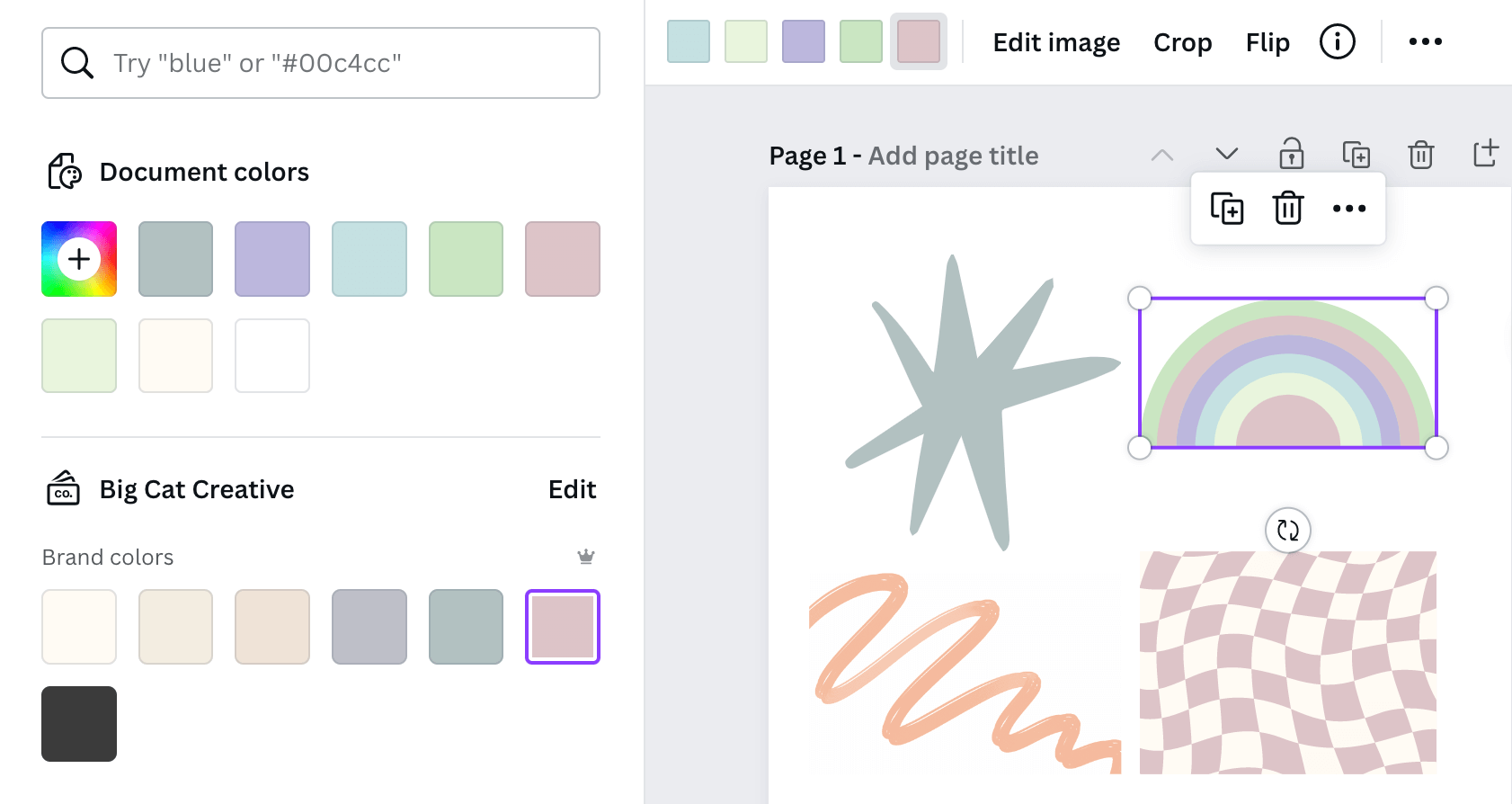
Click on the part of your design with the color you want to change. A toolbar appears above or on the side. Look for the color square icon in this toolbar. This icon shows the current color of the selected element.
Click the color square to open the color picker. The color picker lets you select new colors or enter specific color codes. Use this tool to change one color to another easily.
Credit: www.canva.com
Selecting The Element To Change
Selecting the element to change color in Canva is the first step. You must pick the right part to edit. This step ensures you only change what you want. It helps keep your design clean and clear.
Choosing Text Or Graphics
Text and graphics are the main elements to change color. Click on the text box to select text. For graphics, click on the image or shape you want. Make sure the element is highlighted. This shows it is ready for editing.
Not all elements support color changes. Some images may not allow direct color edits. Vector graphics and shapes usually do. Text color is easy to adjust on the toolbar.
Using The Layers Panel
The Layers panel helps find hidden elements. It shows all parts of your design in order. Use it to select items behind others. Click on the layer of the element you want. This makes editing precise and simple.
Layers help when many objects overlap. You can lock other layers to avoid mistakes. This keeps your work neat and organized. Layers also help select small or hidden parts.
Changing Colors Manually
Changing colors manually in Canva gives you full control over your design’s look. You can select the exact shade you want. This process is simple and fast. It helps make your project unique. Let’s explore how to pick a new color and use tools like hex codes and color wheels.
Picking A New Color
Start by selecting the element you want to change. Click the color box in the toolbar. A palette will open with many color options. You can choose from preset colors or find a custom shade. Drag the cursor over the palette to see different tones. Stop when you find the perfect one. This method helps match colors easily.
Using Hex Codes And Color Wheels
Hex codes offer a precise way to choose colors. These are six-digit codes that represent specific shades. Enter the hex code in the color box for exact color matching. Canva also has a color wheel tool. It lets you create colors by mixing shades. Move the selector around the wheel to pick hues. This tool is useful for finding complementary colors quickly.
Using The Color Replace Feature
The Color Replace feature in Canva lets you change one color to another quickly. This tool saves time and helps keep your design consistent. You do not need advanced skills to use it. Just a few clicks, and your colors update across your design.
Using this feature is simple. It works well on shapes, text, and other design elements. You can pick any color and swap it with a new one. The feature is useful for branding or adjusting designs to fit your style.
Finding The Replace Tool
Open your design in Canva. Select the element with the color you want to change. Look for the toolbar on top or side of the screen. Find the color box showing the current color.
Click the color box. A panel will open with color options. At the bottom, see the “Replace” button. Click it to open the Color Replace tool. This tool shows the color you want to change.
Swapping One Color For Another
In the Color Replace tool, choose the new color. You can pick from the palette or enter a color code. Canva updates all matching colors in your design. It changes every instance of the old color automatically.
Check your design to see the new color applied. If needed, adjust the new color until it looks right. Click outside the tool to save changes. Your design now has the new color everywhere.
Adjusting Color Shades And Tints
Adjusting color shades and tints helps you create the perfect look. Changing a color’s lightness or darkness can make your design stand out. It also helps match colors better across different elements.
In Canva, you can easily tweak colors to fit your style. Small changes can give your design a fresh feel without changing the original color completely.
Lightening Or Darkening Colors
Lightening a color means adding white to it. This makes the color softer and brighter. You can do this by moving the color slider towards the lighter side. Darkening a color adds black, making it deeper and richer. Move the slider towards the darker side to get this effect. These simple steps help you create contrast and depth in your design.
Creating Custom Color Variations
Custom color variations let you pick shades that fit your brand or project. Canva allows you to mix colors by adjusting hue, saturation, and brightness. You can save these variations to use later. This keeps your design consistent and unique. Experiment with small changes to find the best color match for your work.

Credit: www.bigcatcreative.com
Tips For Consistent Color Changes
Keeping colors consistent in your Canva designs is key. It makes your work look professional and neat. Changing one color to another can be tricky without a clear plan. These tips help you keep colors steady across all your projects.
Use the same colors every time. This makes your designs feel connected and strong. Save your favorite colors and apply them with ease. This way, your brand or style stays clear and simple.
Applying Brand Colors
Start by selecting your brand colors in Canva. Use the color picker or enter the exact hex codes. This ensures you use the right shade every time. Apply these colors to text, shapes, and backgrounds. This keeps your design uniform and easy to recognize.
Apply brand colors consistently across all pages. Avoid mixing different shades of the same color. Consistent use builds trust and strengthens your brand identity.
Saving Color Palettes
Create a color palette in Canva for quick access. Save all your brand colors in one place. This saves time and avoids mistakes. You can reuse this palette in future designs easily.
Update your palette if your brand colors change. Keeping palettes current helps keep designs fresh and accurate. Saved palettes make color changes simple and fast.
Troubleshooting Color Change Issues
Changing colors in Canva is usually simple, but sometimes problems arise. These issues can slow your work and cause frustration. Understanding common obstacles helps fix color changes faster. Here are key points to check when colors don’t change as expected.
Dealing With Locked Elements
Locked elements cannot be edited until unlocked. If you try changing color on a locked item, nothing will happen. Check if the element is locked by clicking it. Look for a lock icon or lock status in the toolbar. Unlock the element by clicking the lock icon or using the right-click menu. After unlocking, try changing the color again. Locking helps protect parts of your design but must be removed for editing.
Handling Images And Complex Graphics
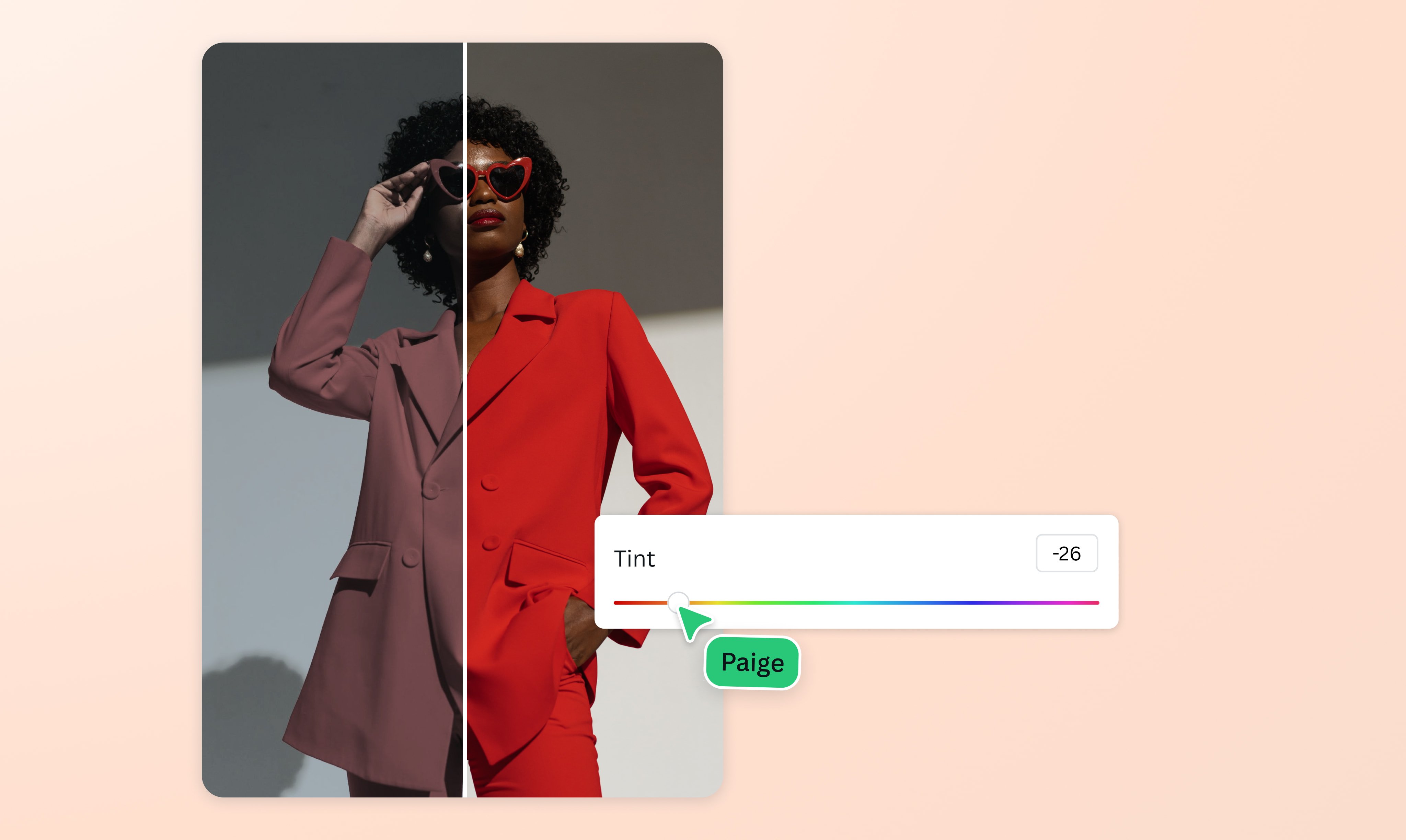
Images in Canva often do not allow direct color changes. Photos and detailed graphics have many colors mixed together. You cannot change one color like a simple shape. Use filters or adjust tint settings to alter the overall image color. For complex graphics, ungroup elements if possible. Ungrouping allows editing individual parts. Some graphics come as flattened images and cannot be edited color-wise. In such cases, recreate the design using shapes for easier color control.
Frequently Asked Questions
How To Change One Color To Another In Canva?
To change a color in Canva, select the element, click the color tile, and pick a new color. You can use the color picker or enter a hex code for precise color matching. This feature works for shapes, text, and backgrounds.
Can I Change Colors Of Images In Canva?
Yes, you can change colors of certain images like graphics or illustrations. Use the “Edit Image” option and select “Duotone” or “Color Mix” effects to adjust colors. However, full photo color changes require external editing tools.
Is It Possible To Change Multiple Colors At Once In Canva?
Currently, Canva does not support changing multiple colors simultaneously. You must change each element’s color individually by selecting it and choosing a new color. Grouping elements helps manage multiple objects, but colors change one by one.
Does Canva Allow Custom Color Uploads?
Yes, Canva lets you add custom colors using hex codes or RGB values. Click the color picker, enter your code, and save the color to your palette for easy reuse. This helps maintain brand consistency in designs.
Conclusion
Changing colors in Canva is simple and quick. You can select any element and pick a new color easily. This helps make your designs fit your style or brand perfectly. Practice a few times to get comfortable with the steps.
Soon, you will change colors with confidence and speed. Keep experimenting to create designs that stand out. Canva makes it easy for everyone to customize colors. Try it today and see the difference in your projects.