Have you ever wanted to save a YouTube video to your computer but didn’t know how? Maybe it’s a tutorial you want to watch offline, or a favorite clip you want to keep forever.
Downloading YouTube videos might seem tricky, but it’s easier than you think. In this guide, you’ll discover simple, safe ways to download videos quickly—without wasting time or risking your device. Keep reading, and by the end, you’ll have everything you need to save your favorite videos right to your computer.
Credit: www.businessinsider.com
Choose A Reliable Tool
Choosing the right tool is key to downloading YouTube videos safely and easily. A reliable tool saves time and protects your computer from viruses. It also ensures good video quality and fast downloads. Different tools offer different features. Pick one that matches your needs and skill level.
Free Vs Paid Options
Free tools let you download videos without paying. They work well for basic needs but may have ads or limits. Paid tools offer more features like faster downloads and better quality. They often include customer support. Choose based on how often you download and what quality you want.
Browser Extensions
Browser extensions add download options directly to your web browser. They are easy to use and quick to install. Extensions work with most popular browsers. Some may slow down your browser or show ads. Use trusted extensions with good reviews to avoid problems.
Desktop Applications
Desktop apps install on your computer and offer powerful features. They support batch downloads and different video formats. Apps work offline and usually run faster. Some apps cost money but provide more control. Make sure the app is compatible with your operating system.
Online Downloaders
Online downloaders work through websites. No installation is needed, just paste the video URL. They are simple and fast for occasional use. Some sites have ads or restrict video length. Use secure websites to protect your data and privacy.
Copy The Video Url
Copying the video URL is the first step to download a YouTube video to your computer. The URL is the web address that points directly to the video. You need this link to use any downloader tool or website. Getting the correct URL ensures you download the exact video you want.
Locate The Video Link
Find the video you want on YouTube. Play it or pause it anywhere. The video link is easy to find on the video page. It is always visible and ready to be copied.
Copy From Browser Address Bar
Look at the top of your browser window. The address bar shows the full URL of the video. Click once inside the address bar to highlight the link. Right-click and select “Copy” or press Ctrl+C (Cmd+C on Mac).
Use Share Button For Link
Below the video, find the “Share” button. Click it to open a small box with the video link. This link is shorter and works the same way. Click “Copy” next to the link to save it to your clipboard.
Paste Url Into Downloader
Pasting the URL into the downloader is a key step in saving a YouTube video. It tells the software exactly which video to get. This step is simple but important. Follow these clear instructions to complete it correctly.
Open The Downloader Interface
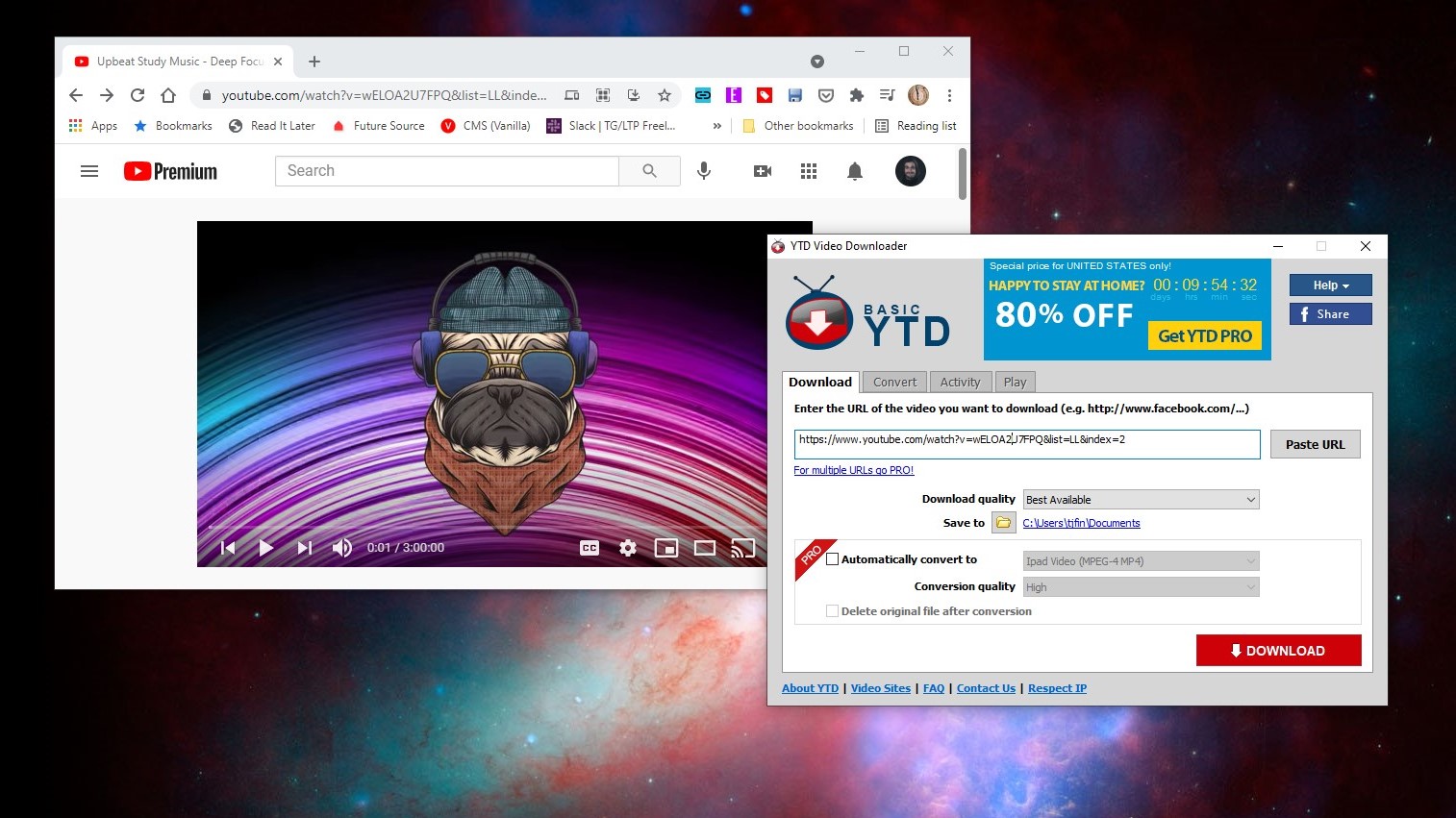
First, launch your chosen downloader tool on your computer. Most downloaders have a clear, easy-to-find interface. You will see a box or field where you can enter text. This is where you paste the video link.
Insert The Video Link
Go to YouTube and copy the URL of the video you want. Return to the downloader and click inside the text box. Paste the URL here by right-clicking and selecting ‘Paste’ or pressing Ctrl+V. Make sure the entire link is included without extra spaces.
Select Download Format
After pasting the URL, choose the format you want to save. Most downloaders offer options like MP4, MP3, or AVI. Pick the format that works best for your needs. Some tools let you select video quality too. Higher quality means a bigger file size.

Credit: www.youtube.com
Select Video Quality
Selecting the right video quality is an important step when downloading a YouTube video to your computer. The quality affects how clear the video looks and how much space it will take on your device. Choosing the best option depends on your needs and device storage. Let’s explore the main points to consider for video quality.
Resolution Options
Resolution means how many pixels the video has. Higher resolution videos look sharper and clearer. Common options include 360p, 480p, 720p, and 1080p. The higher the number, the better the video quality. But high resolution videos need more space and take longer to download.
Choosing File Size
File size depends on the video resolution and length. Large files can fill your hard drive quickly. Smaller files save space but may look blurry or pixelated. Think about your available storage and download speed before picking a file size. This helps avoid problems with slow or interrupted downloads.
Balancing Quality And Speed
Good quality and fast download speed do not always go together. High-quality videos take longer to download. Lower quality files save time but reduce video clarity. Choose a balance that fits your internet speed and viewing needs. This way, you get a smooth download and decent video quality.
Start The Download
Starting the download of a YouTube video to your computer is simple. Follow clear steps to ensure a smooth process. This part covers how to begin the download, check its progress, and fix common problems.
Initiate The Process
First, copy the URL of the YouTube video you want. Open your chosen downloader tool or website. Paste the video link into the input box provided. Select the file format and video quality you need. Click the download button to start. The tool will prepare your file for saving.
Monitor Download Progress
Watch the progress bar or indicator closely. It shows how much of the video has downloaded. Speed depends on your internet connection and file size. Wait patiently until the download completes. Avoid closing the browser or app during this time. Interruptions can corrupt the video file.
Troubleshoot Common Issues
If the download does not start, check your internet. Make sure the video URL is correct and active. Refresh the page or restart the downloader tool if needed. Disable any browser extensions that block downloads. Clear your browser cache to fix loading problems. Try another downloader site if issues continue.
Locate The Downloaded File
After downloading a YouTube video to your computer, the next step is to find the file. This part is important to watch or move the video easily. Knowing where your video saves helps you manage your files better and saves time.
Default Save Locations
Most browsers save downloads in a default folder. Usually, this folder is called “Downloads.” You can check this folder by opening your File Explorer on Windows or Finder on Mac. The video file should appear at the top or bottom of the list, depending on your settings.
Changing Folder Settings
You can change where videos save on your computer. In your browser settings, find the “Downloads” section. Here, you can select a new folder to save your files. Choosing a specific folder helps keep your videos organized and easy to find later.
Opening The Video
To watch your downloaded video, double-click the file. It will open in your default video player. If the video does not open, try right-clicking and choosing “Open with” to select a different player. This way, you can enjoy your video without problems.
Legal Considerations
Downloading YouTube videos to a computer has legal rules. These rules protect the rights of video creators and owners. Understanding these rules helps avoid trouble and respect creators.
Knowing what is allowed and what is not keeps your actions safe and fair. Always think about the law before you download any video.
Respecting Copyright
Most YouTube videos have copyright protection. This means only the owner can copy or share the video. Downloading videos without permission can break copyright laws. Always check if the video owner allows downloads or sharing.
Using Videos For Personal Use
Using downloaded videos only for personal use is usually safer. Watching videos offline for yourself does not harm the owner. Avoid sharing, selling, or posting the videos online. Personal use means keeping the video just for you.
Avoiding Illegal Downloads
Do not use third-party sites that break YouTube rules. Some websites may offer downloads but are illegal. These sites can harm your device with viruses. Stick to legal ways and respect YouTube’s terms of service.
Credit: www.laptopmag.com
Frequently Asked Questions
How Can I Download A Youtube Video To My Computer?
You can download a YouTube video using trusted online converters or dedicated software. Copy the video URL, paste it into the downloader, and select the format. Always use legal and safe tools to avoid malware or copyright issues.
Is It Legal To Download Youtube Videos?
Downloading YouTube videos is legal only if you have permission or if the content is royalty-free. YouTube’s terms prohibit downloading without consent. Use videos for personal use or with creator approval to stay compliant with copyright laws.
Which Format Is Best For Downloaded Youtube Videos?
MP4 is the most common and compatible format for downloaded YouTube videos. It balances good quality and file size. Most players support MP4, making it a preferred choice for easy playback on computers and other devices.
Can I Download Youtube Videos Without Software?
Yes, you can use online YouTube downloaders without installing software. Simply paste the video URL on trusted websites that convert and download videos. However, be cautious of ads and pop-ups on such platforms.
Conclusion
Downloading a YouTube video to your computer is simple and quick. Just follow the steps carefully to avoid mistakes. Choose a reliable tool or website to get the best quality. Always respect copyright rules and use videos fairly. Saving videos lets you watch offline anytime you want.
Practice these steps a few times to feel confident. Now, enjoy your favorite videos without needing internet access.