

Looking to create a QR code quickly and easily? You’re in the right place.
Making a QR code on Canva is simpler than you might think, even if you’ve never tried it before. Imagine having a sleek, custom QR code ready in minutes to share your website, contact info, or special offers. In this guide, you’ll learn exactly how to do it step-by-step, so you can grab attention and connect with your audience instantly.
Keep reading, and you’ll have your perfect QR code in no time!
Credit: www.youtube.com
Creating A Canva Account
Creating a Canva account is the first step to design your own QR codes. Canva offers a simple platform for all design needs. Signing up takes only a few minutes.
Once you have an account, you can access many free tools and templates. This makes creating QR codes easy and fast.
Visit The Canva Website
Open your web browser and go to www.canva.com. The homepage shows the sign-up options clearly. You can start from here to create your account.
Choose A Sign-up Method
Canva allows signing up with email, Google, or Facebook. Pick the method that suits you best. Using Google or Facebook speeds up the process.
Fill In Your Details
Enter your name, email, and create a password. Make sure to use a valid email address. This helps in account recovery if needed.
Verify Your Email
After signing up, check your inbox for a verification email. Click the link inside to confirm your account. This step secures your profile.
Set Up Your Profile
Complete your profile by adding a photo or selecting preferences. This is optional but helps personalize your experience. You are now ready to start designing.
Credit: www.canva.com
Accessing The Qr Code Generator
Accessing the QR Code generator on Canva is simple and quick. This tool lets you create QR codes for your designs without extra software. It saves time and keeps your workflow smooth.
Anyone can use it, even with basic Canva knowledge. Follow clear steps to find and open the QR Code generator. Then, start making your QR code in minutes.
Logging Into Canva
First, open your web browser and go to Canva’s website. Enter your email and password to log in. If you don’t have an account, create one using your email or social media.
Opening A New Or Existing Design
After login, choose to start a new design or open an existing one. The QR Code generator works inside your design space. Pick the size and format that fits your project.
Finding The Qr Code Generator
Look at the left side menu in the Canva editor. Scroll down to find “Apps” or “More.” Click it to open a list of Canva tools. Find and select “QR Code” from the options.
Launching The Qr Code Tool
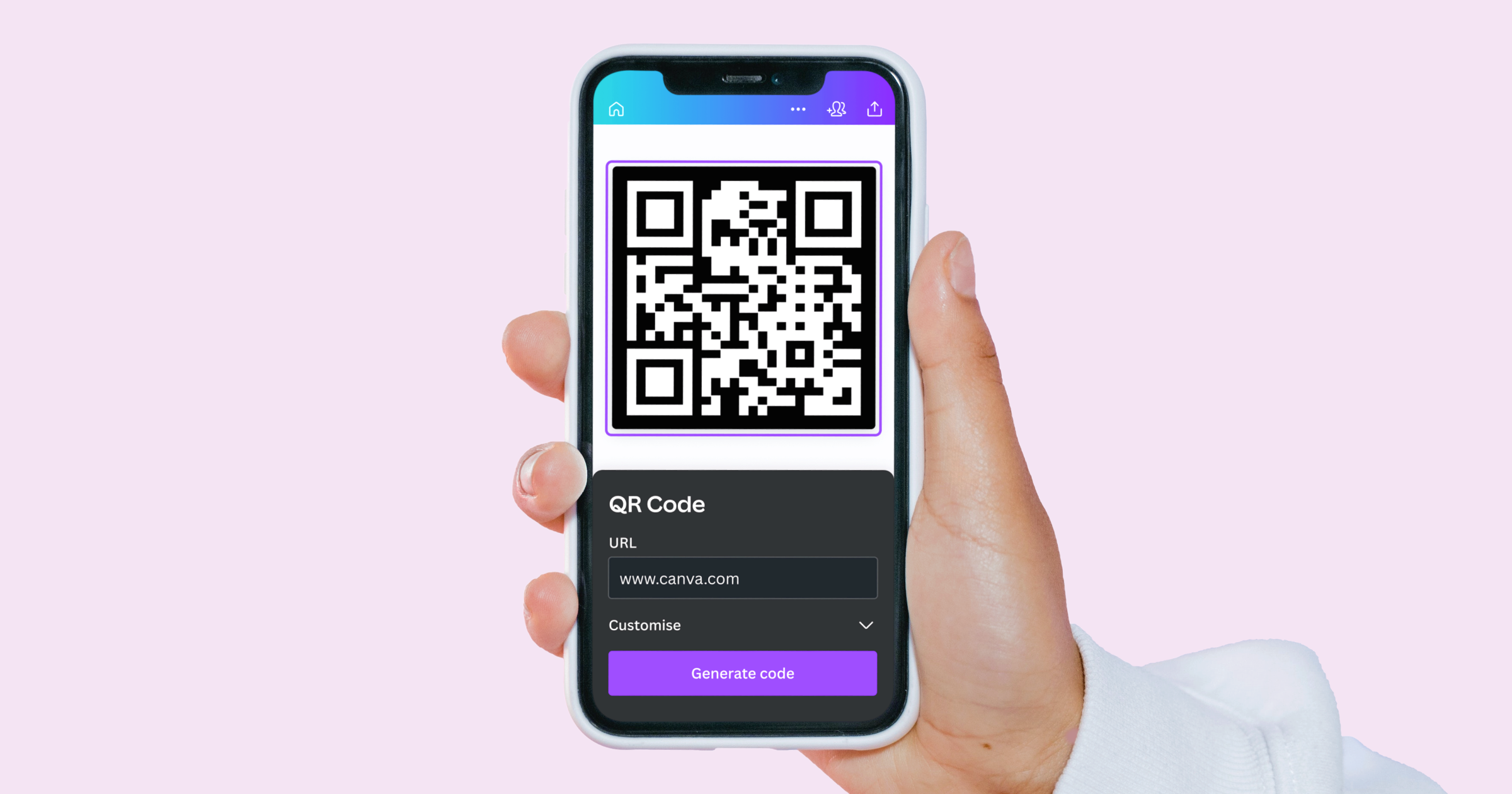
Clicking the QR Code tool opens a small window. Enter the website link or text you want to turn into a QR code. Press the “Generate” button to create the code.
Entering Your Url Or Information
Entering your URL or information is a key step in creating a QR code on Canva. This part lets you decide what the QR code will show or link to. You can enter a website address, text, or other data. The QR code will then direct users to this information when scanned.
It is important to type the URL or information carefully. Even a small mistake can lead to a wrong destination. Double-check what you type before creating the QR code. Clear, accurate input ensures the QR code works well.
Access The Qr Code Generator
Start by opening Canva and searching for the QR code tool. This tool allows you to enter your URL or information easily. It will generate the QR code based on what you provide. Find the QR code option in Canva’s menu to begin.
Input Your Url Or Text
Type the full web address or information into the box. Use the format “https://” for URLs to ensure proper linking. For text, write exactly what you want to share. Keep it short and simple for the best result.
Verify Your Information
Check the URL or text carefully. Make sure there are no typos or extra spaces. Use the preview feature to test if the QR code links correctly. Fix any errors before moving forward.
Customizing Your Qr Code Design
Customizing your QR code design makes it unique and fits your brand style. Canva offers simple tools to change colors, add logos, and adjust shapes. These options help your QR code stand out and attract more attention. Personalizing the design also keeps it professional and easy to recognize.
Changing Colors
Changing the colors of your QR code is easy in Canva. Select the QR code and pick colors that match your brand. Use contrasting colors for better scanning. Avoid very light or very dark colors that can cause errors. A well-chosen color scheme makes your QR code attractive and clear.
Adding Logos Or Images
Adding a logo or image inside your QR code strengthens your brand identity. Upload your logo to Canva and place it in the center of the code. Make sure the logo is not too big to keep the QR code readable. This small touch helps customers recognize your business quickly.
Adjusting Shapes And Patterns
Canva lets you change the shapes and patterns of your QR code’s dots and corners. Choose from circles, squares, or other styles to match your design theme. Different shapes create a unique look without affecting the code’s function. Test the QR code after changes to ensure it scans well.
Incorporating The Qr Code Into Your Design
Incorporating a QR code into your design helps connect your audience to more information. The QR code should fit well with your design style. It must be easy to scan and visible without being too large. This section explains how to add the QR code smoothly into your Canva project. Follow these steps for a clean, balanced look.
Choosing The Right Template
Select a Canva template that matches your QR code’s purpose. Look for designs with clear spaces where the code can fit. Avoid templates crowded with too many graphics. Simple layouts help the QR code stand out. Pick a template with colors that contrast well with the black and white QR code.
Positioning The Qr Code
Place the QR code where it is easy to find. Common spots include the bottom right or bottom center of the design. Keep it away from edges to avoid cutting it off when printed. Make sure no text or images cover the code. Test scanning the code on your design to check its readability.
Balancing Design Elements
Balance the QR code with other design parts. Use enough white space around the code to make it clear. Avoid placing too many elements near it. Match the size of the QR code with other visuals. This balance keeps the design neat and professional. The QR code should feel part of the whole, not an afterthought.
Credit: www.youtube.com
Downloading And Sharing Your Design
After creating your QR code design on Canva, the next step is to download and share it. This process is simple and lets you use your QR code in many ways. You can save it for printing or share it online. Choosing the right file format and sharing method ensures your QR code works well everywhere.
Selecting File Formats
Canva offers several file formats to download your QR code. PNG is best for clear images with transparent backgrounds. JPEG works well for colorful designs but has no transparency. PDF is ideal for printing and keeps high quality. Pick a format that fits your needs for use or print.
Printing Tips
Print your QR code on clean, flat surfaces for easy scanning. Use high contrast colors like black and white. Avoid small sizes; make the code at least 2 x 2 inches. Check the print quality to keep the code sharp and readable. Test scan the printed code to confirm it works.
Sharing Digitally
Share your QR code on social media or websites by uploading the file. PNG files load quickly and keep good quality online. Use email to send your QR code to others. Add it to presentations or documents for easy access. Ensure the QR code links correctly before sharing.
Troubleshooting Common Issues
Creating a QR code on Canva is simple. Sometimes, issues may arise. This section helps solve common problems. Clear QR codes ensure smooth scanning and usage.
Qr Code Not Scanning
Check the QR code size. Small codes may not scan properly. Make it bigger to improve scanning. Use a plain background with good contrast. Avoid patterns behind the code. Test the QR code with different devices. Poor lighting can also block scanning. Make sure the camera lens is clean. Refresh or recreate the QR code if it still fails. Ensure the link or data behind the code is correct.
Design Visibility Problems
QR codes need clear visibility. Avoid adding too many colors on the code. Stick to black and white or dark colors. Keep enough space around the QR code. Crowded designs confuse scanners and users. Don’t cover the QR code with logos or images. Check the code’s position on your design. Place it in a simple, open area. Adjust brightness and contrast for better clarity. Test the design before final use to confirm visibility.
Tips For Effective Qr Codes
Creating a QR code on Canva is simple, but making it effective needs care. Good QR codes are easy to scan and serve their purpose well. Follow these tips to improve your QR codes and help users connect quickly.
Keeping It Simple
Use a clean design without too many colors or patterns. Avoid clutter around the QR code. Make sure the code is large enough to scan easily. Simple codes work better on all devices.
Testing Before Use
Scan your QR code with different phones before sharing. Check if it leads to the correct link every time. Fix any problems before printing or posting it online. Testing saves time and avoids user frustration.
Updating Qr Code Links
Choose dynamic QR codes if you want to change links later. This lets you update the destination without making a new code. Keep your links current for the best user experience. Regular updates keep your QR code useful.
Frequently Asked Questions
How Can I Create A Qr Code On Canva?
To create a QR code on Canva, open your design, select “Apps” from the sidebar, and choose “QR Code. ” Enter your URL, click “Generate Code,” and the QR code will appear on your design. You can resize and position it as needed.
Is Making Qr Codes On Canva Free?
Yes, generating QR codes on Canva is free. You can create and add QR codes to any design without extra charges. However, some Canva premium features require a subscription, but QR code creation remains accessible for all users at no cost.
Can I Customize Qr Codes In Canva?
Canva allows basic customization like resizing and repositioning the QR code. However, detailed design changes such as colors or shapes are limited. For advanced QR code customization, specialized tools outside Canva may be needed.
What Types Of Links Work With Canva Qr Codes?
Canva QR codes support URLs to websites, social media profiles, online stores, and more. You can link to any valid web address, making it versatile for marketing, events, or personal projects.
Conclusion
Creating a QR code on Canva is quick and simple. You can add your link or text easily. Customize the design to fit your style. Save and use the QR code anywhere you want. This tool helps share information fast and clearly.
Try making your own QR code today and see how useful it can be. It makes sharing details easy for everyone. Give it a shot and enjoy the convenience.


