

Have you ever needed to add a table to your Canva design but didn’t know where to start? Tables can make your information clear and organized, helping your audience understand your message faster.
If you want to create professional-looking layouts without hassle, this guide is made for you. Keep reading, and you’ll learn simple, step-by-step ways to insert a table in Canva—no design skills required. By the end, you’ll be able to create eye-catching tables that make your content stand out.
Let’s dive in and make your next Canva project even better!
Getting Started With Canva
Getting started with Canva is simple and fast. This tool helps create designs easily. It works well for all skill levels. Beginners will find it friendly and clear.
You can use Canva on any device. It supports laptops, tablets, and phones. This makes designing very flexible. You do not need special software.
Creating A Free Canva Account
Visit Canva’s official website to begin. Click on the sign-up button. You can register using email or social media. The free account offers many useful features.
Exploring The Canva Dashboard
Once logged in, you see the dashboard. It shows templates, designs, and tools. The left side holds the main menu. The top bar contains search and settings.
Starting A New Design
Click on the “Create a design” button. Choose the size or template that fits your need. The design editor opens with blank space. Now, you are ready to add elements.
Accessing Table Features
Accessing table features in Canva is simple and quick. Tables help organize information clearly. Knowing how to find and use these tools saves time.
Canva does not have a direct table button like other programs. You use grids or shapes to create tables. These options allow customizing rows and columns.
Using Grids To Create Tables
Start by clicking the “Elements” tab on the left side. Scroll down to find “Grids.” Choose a grid layout that fits your needs. Each grid section acts like a cell in a table.
You can add images or text inside each grid cell. Adjust the size by dragging the edges. This method works well for simple tables.
Adding Tables With Lines And Shapes
Another way is using lines and shapes. Select the “Elements” tab again and pick “Lines” or “Squares.” Place them to form rows and columns. Use multiple shapes to build the table grid.
Change colors and thickness to match your design. Group shapes to move the table as one piece. This method offers more control over the table’s look.
Editing Table Content
Click inside each grid or shape to add text. Use the text tool to type or paste data. Change font style, size, and color easily.
Resize cells by dragging corners to fit the content. Keep the layout balanced for a clean look. This step helps create readable and neat tables.
Creating A Table From Scratch
Creating a table from scratch in Canva is simple and gives you full control. You start with a blank canvas and build the table step by step. This allows you to customize the table to fit your exact needs. Let’s break down the process into easy parts.
Choosing The Table Layout
First, decide how your table will look. Think about the number of columns and rows you need. Canva does not have a direct table tool, so use grids or shapes to create the base. Select a layout that fits your data well. Keep your design clean and easy to read.
Adding Rows And Columns
Next, add rows and columns to your table. Use rectangles or lines to mark each cell. Duplicate these shapes to create more rows or columns. Align them carefully to keep the table neat. Group shapes to move or resize the whole table easily.
Customizing Cell Size
Adjust each cell’s size to match your content. Select a shape and drag its edges to resize. Make sure all cells in a column or row are the same size. This keeps the table balanced and professional. Use Canva’s alignment tools for perfect spacing.

Credit: www.canva.com
Using Table Templates
Using table templates in Canva is a quick way to create neat and organized tables. Templates save time and give you a ready design to work with. You can pick a style that fits your project and start editing right away.
This method is perfect if you want a clean look without building a table from scratch. Templates come in many layouts and colors. They help keep your work consistent and professional.
Selecting A Template
First, open Canva and go to the search bar. Type “table templates” to see available options. Scroll through the choices to find one that suits your needs. Look for simple designs if you want easy editing.
Click on a template to add it to your design. You can change the size or move it anywhere on your page. Choosing the right template saves time and gives a good base for your table.
Modifying Table Elements
Once the template is on your design, you can start changing it. Click on any cell to edit text or numbers. Use the toolbar to change fonts, sizes, and colors.
Adjust the rows and columns by adding or deleting cells. Drag borders to resize cells and make your table fit perfectly. You can also change the background color of cells for better visibility.
These simple changes make your table clear and easy to read. Templates are flexible, so you can adapt them to your exact needs without much effort.
Styling Your Table
Styling your table in Canva makes your design clear and attractive. A well-styled table helps readers find information fast. Canva offers many easy tools to change your table’s look. You can adjust colors, fonts, borders, and even add images or icons. These small changes improve your table’s appeal and make your content stand out.
Adjusting Colors And Borders
Choose colors that match your design theme. Change cell backgrounds to highlight important data. Use contrasting colors for better readability. Adjust border thickness to separate rows and columns clearly. Select border styles like solid, dotted, or dashed for a unique look. Keep your color choices simple to avoid distraction.
Changing Fonts And Text Alignment
Pick fonts that are easy to read. Use bold fonts for headers to make them stand out. Align text left, center, or right for better structure. Consistent alignment improves the table’s flow. Keep font sizes uniform to maintain a clean look. Avoid fancy fonts that may confuse readers.
Inserting Images And Icons
Add small images or icons to explain data visually. Use icons to represent categories or actions clearly. Place images inside cells to save space. Resize images to fit without crowding the text. This adds interest and helps explain your data quickly. Keep images simple and relevant to your content.
Editing And Updating Tables
Editing and updating tables in Canva is simple and flexible. You can change the table’s layout and appearance anytime. This helps keep your design neat and clear. Adjusting tables fits your content perfectly.
Adding Or Removing Cells
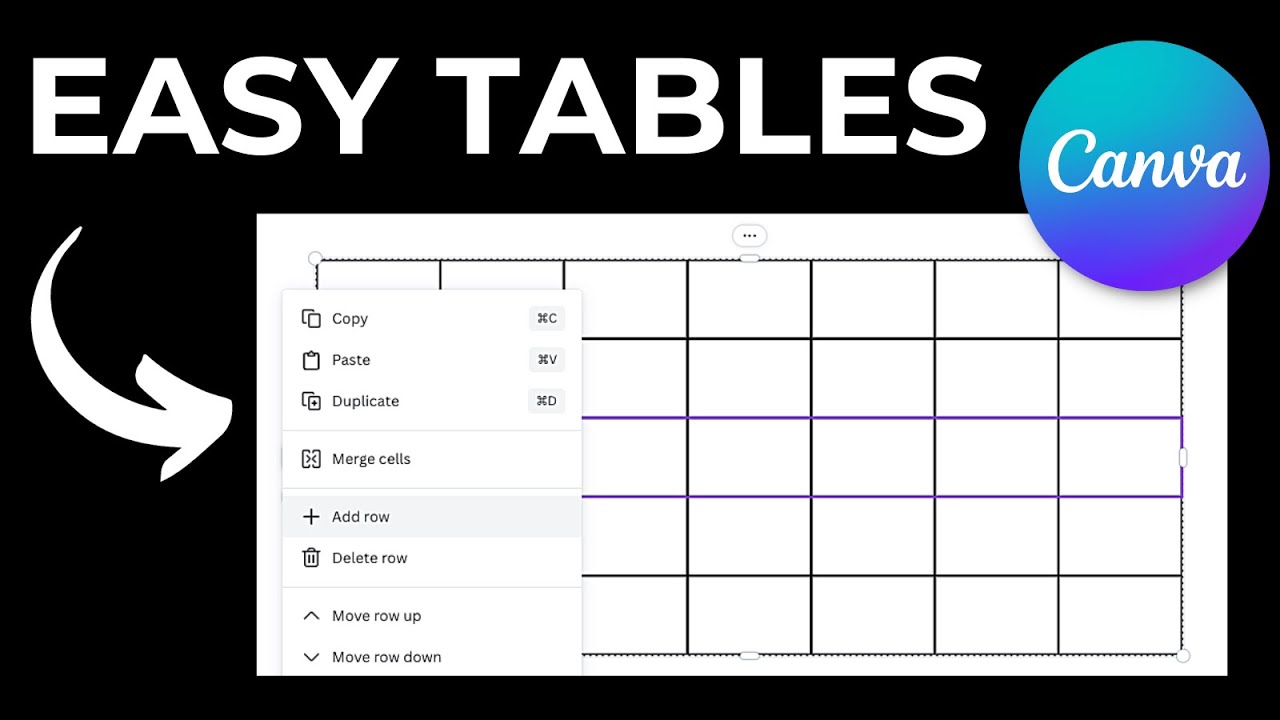
To add cells, click on a row or column edge. Select the option to insert a new cell. You can add rows below or columns to the side. Removing cells works the same way. Click on the cell you want to delete and choose the remove option. This keeps your table size just right.
Merging And Splitting Cells
Merging cells combines two or more into one big cell. Select the cells you want to merge. Click the merge button to join them. Splitting cells breaks one cell into multiple smaller ones. Choose the cell and click split. These steps help organize data clearly.
Resizing Tables
Resize tables by dragging the edges or corners. You can make the table wider or taller. Adjust column width and row height separately. This makes your table fit better in your design. Resizing keeps your table balanced and easy to read.
Tips For Stunning Table Designs
Designing tables in Canva can be simple yet effective. Good table design helps readers find information fast. Follow these tips to create clear and attractive tables. Your data will look neat and professional.
Keeping It Simple And Clean
Use few colors and fonts to avoid clutter. Choose one or two font styles for easy reading. Avoid too many borders or decorations. Clean designs help viewers focus on the data. White space around cells makes tables less crowded.
Using Contrast And Spacing
Use contrasting colors for text and background. Dark text on a light background is easy on the eyes. Add space between rows and columns for clear separation. Proper spacing improves readability and visual appeal. Contrast guides the reader’s attention to key points.
Maintaining Consistency
Keep font size and color uniform throughout the table. Align text properly in each cell for a tidy look. Consistent style creates a balanced and professional table. Use the same style for all tables in your project. Consistency builds trust and makes data easier to understand.
Credit: insight.voc.ai
Exporting And Sharing Your Design
Exporting and sharing your design is an important step after creating a table in Canva. It allows you to save your work and send it to others easily. Canva offers several options to export your design in different file formats. You can also share your design directly with team members or clients within the platform.
Choosing the right export format depends on how you plan to use your design. For example, a PDF is great for printing, while a PNG or JPEG works well for web use. Sharing options include sending a link or inviting others to edit your design. These tools help you collaborate smoothly and keep your project organized.
Exporting Your Design As A Pdf
Export your design as a PDF for high-quality prints or documents. Click the download button and select PDF Print or PDF Standard. PDF Print gives you the best resolution for printing. PDF Standard is smaller and good for online use. Choose the option that fits your needs and save the file to your computer.
Downloading Your Design As An Image
Canva allows you to download your design as a PNG or JPEG image. PNG files keep the quality and support transparent backgrounds. JPEG files are smaller and load faster on websites. Select the image format you want and click download. This is useful for social media posts or presentations.
Sharing Your Design Link
Share your design with others by sending a link. Click the share button and choose “Anyone with the link.” Set permissions to view or edit based on your preference. Copy the link and send it by email or chat. This helps you get feedback or work together in real time.
Inviting Collaborators To Edit
Invite team members to edit your design inside Canva. Use the share option and enter their email addresses. They receive an invitation to open and edit the file. This feature is great for group projects and quick changes. Keep your work updated with input from others easily.

Credit: louisem.com
Frequently Asked Questions
How Do I Insert A Table In Canva Easily?
To insert a table in Canva, use the grid or frame feature. Add a grid with rows and columns. Customize cells by adding text or images. This method creates a table-like layout efficiently without a dedicated table tool.
Can I Customize Table Colors In Canva?
Yes, you can customize table colors in Canva. Change the background of each grid cell or frame. Adjust text color and borders using Canva’s color tools. This makes your table visually appealing and consistent with your design theme.
Is It Possible To Add Or Remove Table Rows In Canva?
Yes, you can add or remove rows by adjusting grids or frames. Add more grid cells to expand rows or delete cells to reduce rows. This flexibility lets you tailor the table size to your content needs.
How Do I Align Text Inside Canva Tables?
Align text by selecting the text box inside each cell. Use Canva’s alignment tools to left, center, or right-align text. Proper alignment improves readability and enhances your table’s overall design.
Conclusion
Inserting a table in Canva is simple and quick. You can organize your data clearly with just a few clicks. This skill helps create neat designs for presentations, reports, or social media. Practice these steps to gain confidence and save time.
Try different styles to find what fits your project best. Keep exploring Canva’s features to improve your design work. Tables add structure and make information easy to read. Start using tables today to make your designs stand out.


