
Are you looking to create eye-catching TikTok videos using Premiere Pro but don’t know where to start? You’re in the right place.
Getting the TikTok format just right can make your videos stand out and grab more views. In this post, you’ll learn simple, step-by-step tips to set up your project perfectly for TikTok’s unique style. By the end, you’ll have the skills to make your content look professional and ready to go viral.
Let’s dive in and transform your editing process!

Credit: www.wesjones.co
Setting Up Your Project
Starting your TikTok video project in Premiere Pro needs a clear setup. This step helps you work faster and avoid mistakes. Setting up your project properly ensures your video fits TikTok’s vertical format. Follow the steps below to prepare your workspace and files.
Choosing The Right Sequence Settings
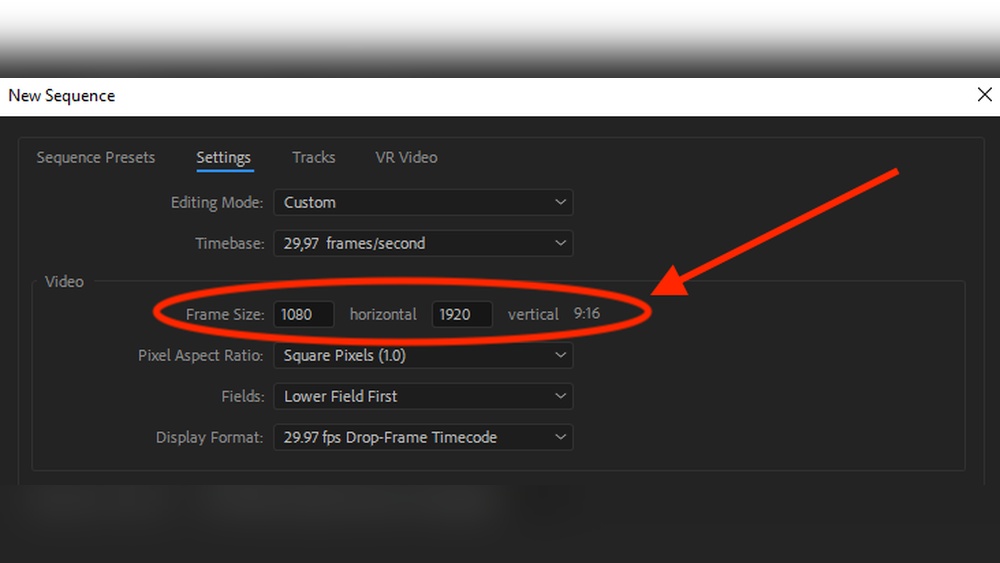
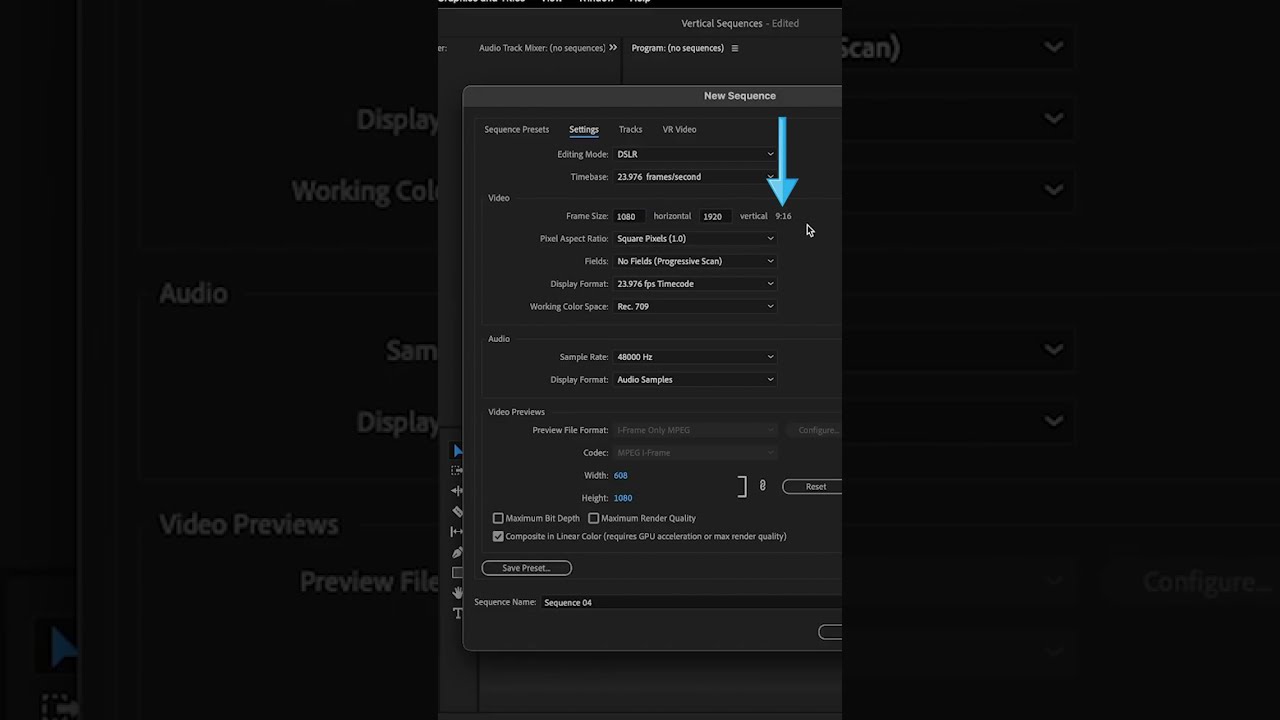
Create a new sequence with the correct size for TikTok videos. Set the frame size to 1080 pixels wide and 1920 pixels tall. This matches TikTok’s vertical video format. Use a frame rate of 30 frames per second for smooth playback. Choose the right preset, like DSLR 1080p30, and then customize the frame size. Save the sequence settings to use later for similar projects.
Importing Media Files
Import your video clips, images, and audio files into Premiere Pro. Use the Media Browser or drag files directly into the project panel. Organize your files into folders for easy access. Name your clips clearly to find them fast. This step keeps your project tidy and saves time during editing. Make sure your media matches the sequence settings to avoid quality loss.
Credit: klintmarketing.com
Adjusting Aspect Ratio
Adjusting the aspect ratio is key to making TikTok videos in Premiere Pro. TikTok uses vertical videos that fill the phone screen. This means you must change your project’s frame size and orientation. Editing in the right aspect ratio helps your video look professional and fit TikTok’s format perfectly.
Switching To Vertical Format
Start by opening your project in Premiere Pro. Go to the sequence settings to change the frame orientation. Change from horizontal (landscape) to vertical (portrait). This means swapping width and height values. Set the width to 1080 pixels and height to 1920 pixels. This matches TikTok’s vertical video size.
After switching, check your clips. They may need repositioning or scaling. Use the preview window to adjust and keep important parts in frame. Vertical format makes your video easier to watch on phones.
Customizing Frame Size For Tiktok
Sometimes you need a custom frame size. This helps if your video source is different. Go to Sequence Settings and enter width as 1080 and height as 1920. Keep the pixel aspect ratio as square (1.0). This avoids stretching or squashing your video.
Adjust the scale of your clips to fill the frame nicely. Avoid black bars by zooming or repositioning clips carefully. Custom frame size keeps your video crisp and clear on TikTok.
Editing For Tiktok Style
Editing for TikTok style means creating fast, fun, and eye-catching videos. TikTok videos usually have quick changes, bold text, and cool effects. These elements keep viewers interested and make the content stand out. Premiere Pro can help you make videos that fit this style well.
Focus on speed and energy in your edits. Keep clips short and lively. Use tools in Premiere Pro to add text and effects that match TikTok’s vibrant look. This approach makes your videos look fresh and professional.
Using Quick Cuts And Transitions
Quick cuts keep the video moving fast. Cut clips to only a few seconds each. This style stops the video from feeling slow or boring. Use simple transitions like cuts or quick fades to keep the flow smooth.
Premiere Pro offers many transition options. Use “Dip to Black” or “Cross Dissolve” for smooth scene changes. Avoid long or flashy transitions. They can distract from the main content.
Adding Text And Captions
Text is important in TikTok videos. It helps tell the story or add humor. Use big, clear fonts. Place text in areas that don’t cover important parts of the video.
Premiere Pro’s Essential Graphics panel makes adding text easy. Choose bright colors that stand out. Use animations like fade-in or slide to catch attention. Captions also help viewers understand the video without sound.
Incorporating Effects And Filters
Effects and filters add style and mood to your video. Use color correction to make clips vibrant. Try popular filters that give a trendy look. Keep effects subtle so the video stays natural and clear.
Premiere Pro has many built-in effects. Experiment with glow, blur, or shake effects for energy. Use these sparingly to enhance, not overpower, your content.
Optimizing Audio
Optimizing audio is key for TikTok videos edited in Premiere Pro. Clear sound keeps viewers interested and boosts video quality. Poor audio can distract and lower engagement. Follow simple steps to sync and enhance your audio tracks effectively.
Syncing Soundtracks
Start by matching your audio with video clips. Use Premiere Pro’s timeline to drag sound clips close to the video. Zoom in to align audio peaks with visual actions. This ensures sound matches lips or movements perfectly. Check for any delays or overlaps. Adjust the clip’s position slightly until syncing feels natural.
Enhancing Voice And Music
Balance voice and background music levels carefully. Lower music volume so the voice stands out clearly. Use audio effects like equalizer to improve voice clarity. Remove background noise with the noise reduction tool. Add light compression to keep volume steady. Test playback on different devices to ensure clear sound everywhere.
Exporting For Tiktok
Exporting your video correctly is essential for TikTok. The platform has specific requirements to make sure your video looks good and uploads smoothly. Setting the right export options in Premiere Pro helps keep your video sharp and clear on TikTok.
Choosing Export Settings
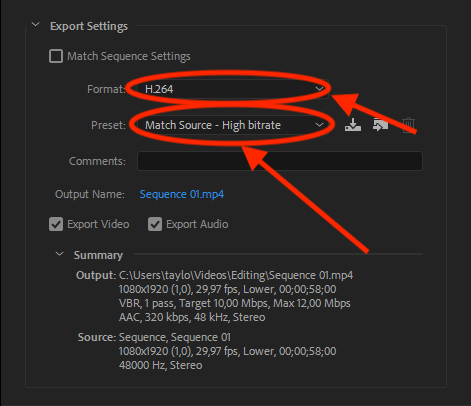
First, set the format to H.264. It is the best choice for TikTok videos.
Next, select the preset named “Match Source – High Bitrate.” This keeps your video quality high.
Set the frame size to 1080 by 1920 pixels. This is the standard vertical format for TikTok.
Make sure to set the frame rate to 30 frames per second.
Use a bitrate between 8 and 12 Mbps for good quality and file size.
Check the “Use Maximum Render Quality” box for better output.
Saving And Uploading Your Video
After export, save your video to a known folder on your computer.
Transfer the video file to your phone using a USB cable or cloud service.
Open the TikTok app and tap the “+” button to upload your video.
Choose the saved video from your phone gallery.
Add captions, sounds, or effects inside TikTok if needed.
Tap “Post” to share your video with the TikTok community.
Credit: www.youtube.com
Tips For Viral Tiktok Content
Creating viral TikTok content requires more than just editing skills. Understanding what makes videos catch attention is key. Simple tricks can help your videos reach more people and keep viewers watching.
Timing And Length Considerations
TikTok videos work best when short and focused. Keep videos under 30 seconds for maximum impact. Quick cuts and tight editing hold viewers’ attention. Start strong with an interesting scene to grab interest immediately. Avoid long introductions or slow parts that lose viewers.
Engaging Visual Elements
Use bright colors and clear images to make videos stand out. Add text overlays to highlight key points or add humor. Use effects and transitions sparingly to keep the video lively. Faces and close-ups help connect with viewers emotionally. Good lighting improves video quality and keeps viewers watching longer.
Frequently Asked Questions
How To Set Tiktok Format In Premiere Pro?
To set TikTok format, create a new sequence with 1080×1920 resolution. This vertical format matches TikTok’s aspect ratio perfectly.
Can I Use Presets For Tiktok Videos In Premiere Pro?
Yes, Premiere Pro offers presets for vertical videos. Choose the “Vertical” or “Mobile” preset to speed up TikTok video editing.
What Is The Best Export Setting For Tiktok Videos?
Export using H. 264 codec with 1080×1920 resolution. Set frame rate to 30fps and bitrate around 8 Mbps for quality and size balance.
How To Add Tiktok Style Effects In Premiere Pro?
Use quick cuts, zooms, and color grading. Add text overlays and trendy transitions to mimic TikTok’s engaging style easily.
Conclusion
Applying TikTok format in Premiere Pro is simple with the right steps. Choose the correct aspect ratio, usually 9:16, for vertical videos. Adjust your clips to fit this size and keep important parts centered. Export your video with settings suited for TikTok quality.
Practice these tips, and your videos will look great on TikTok. Keep experimenting to find what works best for you. This approach helps your content stand out and engage viewers easily.


