

Are you looking to make your Canva slideshow more engaging and memorable? Adding music can instantly transform your presentation, grabbing attention and setting the perfect mood.
But if you’ve ever wondered how to add music to your Canva slideshow easily, you’re in the right place. You’ll discover simple, step-by-step tips to bring your slides to life with sound. Keep reading, and you’ll be creating stunning, sound-filled slideshows in no time!
Prepare Your Music Files
Preparing your music files is the first step to adding sound to your Canva slideshow. Good preparation helps your slideshow feel smooth and professional. It also makes sure your music plays without problems.
Choose The Right Audio Format
Pick audio files that Canva supports. MP3 and WAV are the best choices. They work well on most devices. Avoid rare formats that might not upload or play correctly. Using the right format keeps your slideshow running smoothly.
Select Music That Matches Your Theme
Pick music that fits your slideshow’s mood. Calm slides need soft, slow music. Exciting slides want fast and lively tunes. Matching music to your theme makes viewers enjoy your slideshow more. It adds feeling and interest to your story.
Trim Or Edit Your Tracks
Cut your music to the right length. Long songs can distract or end before your slideshow does. Use simple editing tools to trim the start or end. Remove silence or unwanted parts. This keeps your slideshow tight and focused.
Access Canva Slideshow Editor
Accessing the Canva slideshow editor is the first step to adding music. Canva offers a user-friendly platform to create and edit slideshows easily. You can start fresh or pick an existing project to edit. The editor lets you add images, text, and audio smoothly. Understanding how to open and navigate the editor saves time and effort.
Create Or Open A Slideshow Project
First, log in to your Canva account. Click on the “Create a design” button. Choose “Slideshow” from the options. To edit an existing slideshow, go to “Your projects.” Select the slideshow you want to open. This opens the slideshow editor where you can start adding music.
Navigate To The Audio Section
Inside the slideshow editor, look at the left sidebar. Find and click on the “Audio” tab. Here, you see a collection of music tracks and sound effects. You can also upload your own audio files. Select the track you want to add by clicking it. The music will appear on your slideshow timeline, ready to edit.
Add Music To Your Slideshow
Adding music to your Canva slideshow makes it more lively and engaging. Music sets the mood and keeps viewers interested. Canva offers simple ways to include audio in your slideshows. Choose from your own files or Canva’s built-in music options. Follow these steps to add sound that fits your style and message.
Upload Your Own Audio
Start by preparing the audio file you want to use. Supported formats include MP3 and WAV. Click on the “Uploads” tab in Canva’s sidebar. Then, select “Upload media” and find your audio file on your device. Once uploaded, drag the audio onto your slideshow timeline. This method lets you use personal music or voice recordings.
Use Canva’s Music Library
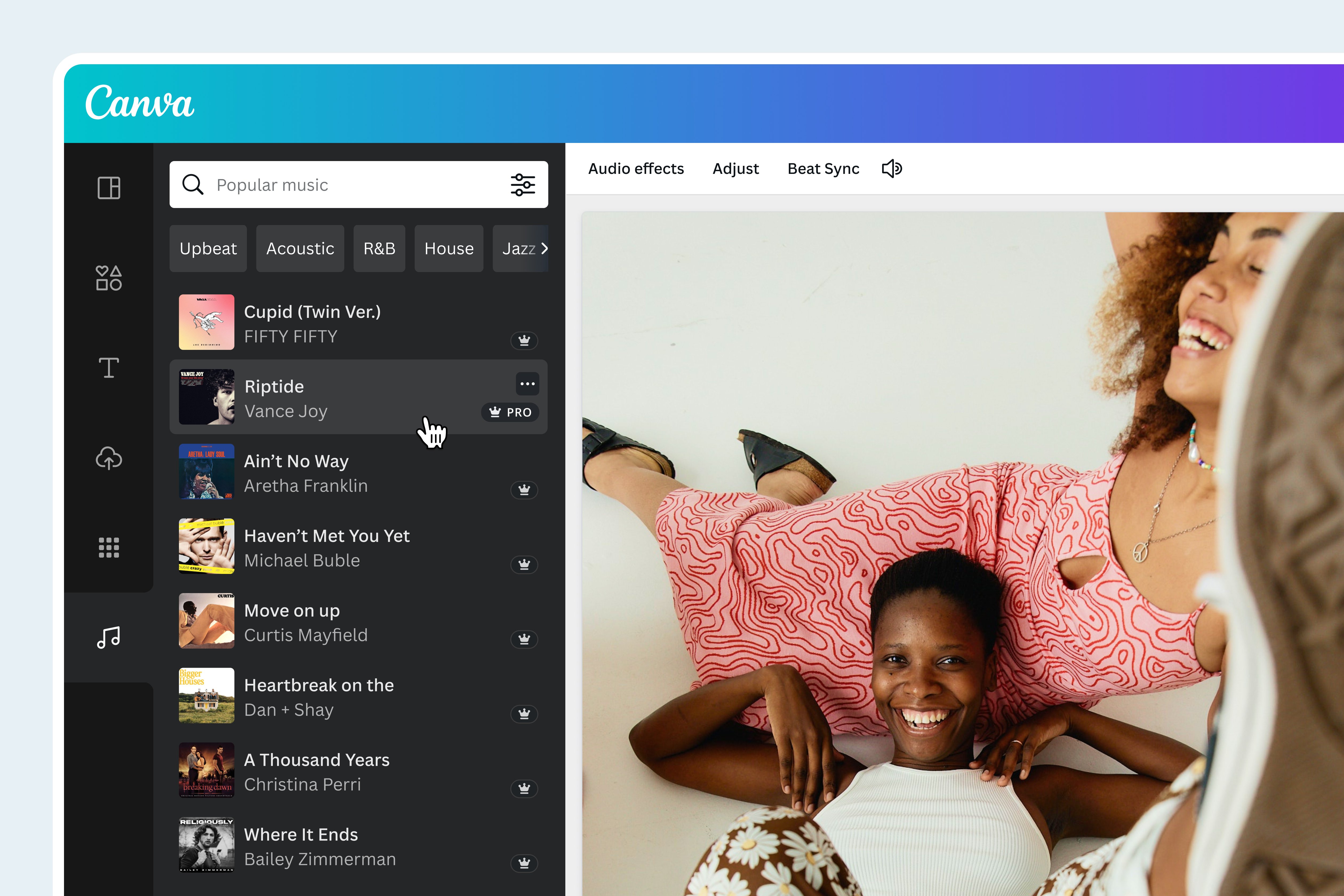
Canva offers a collection of free and paid music tracks. Open the “Music” tab from the sidebar. Browse by mood, genre, or theme to find a suitable track. Click on a song to preview it. To add it to your slideshow, just click the plus icon or drag it onto the timeline. This option provides easy access to quality background music.
Drag And Drop Audio Tracks
After choosing or uploading audio, place it on your slideshow timeline. Click and hold the track, then drag it to the desired position. Adjust the length by dragging the edges of the audio track. This feature helps sync music with your slideshow perfectly. You can overlap audio with specific slides or stretch it across the entire presentation.
Credit: www.canva.com
Adjust Audio Settings
Adjusting audio settings in your Canva slideshow lets you create the perfect sound experience. You can control when the music plays, its volume, and how it flows. These options help make your slideshow more engaging and professional.
Set Audio Timing And Duration
Choose the exact start time for your music track. You can align it with a specific slide or moment. Trim the audio to fit the length of your slideshow. This avoids awkward silence or abrupt stops.
Control Volume Levels
Adjust the music volume to suit your slideshow. Lower the volume if you have voice narration. Raise it for background ambiance without overpowering the visuals. Balance is key for a pleasant experience.
Loop Or Fade Effects
Use the loop feature to repeat your music seamlessly. This is helpful for longer slideshows. Apply fade-in or fade-out effects to smooth the start and end. These subtle touches make your slideshow sound polished.
Preview And Finalize
Previewing and finalizing your Canva slideshow with music is an important step. It helps ensure the audio fits perfectly with your visuals. This step lets you catch mistakes and improve the flow. It also ensures your slideshow looks and sounds great before sharing or downloading.
Play The Slideshow With Music
Click the play button to watch your slideshow. Listen carefully to the music and how it matches the slides. Notice if the song starts and ends at the right times. Check if the volume feels balanced. This helps you know if the music enhances the slideshow or distracts.
Make Necessary Adjustments
Adjust the timing of your slides if the music does not fit well. You can trim the audio or change the song length. Lower or raise the music volume for better balance. Fix any mismatch between audio and visuals. Repeat previewing until you are happy with the result.
Download Or Share Your Project
After final checks, download your slideshow with music. Choose the right file format for your needs. You can also share the project directly from Canva. Use links or embed options to reach your audience. Your slideshow is now ready to impress with sound and visuals.

Credit: www.canva.com
Tips For Better Audio Integration
Adding music to your Canva slideshow can make it more lively and engaging. Good audio makes your message clear and keeps your viewers interested. Follow these simple tips for better sound integration in your slideshows.
Keep Music Length Appropriate
Choose music that matches the length of your slideshow. Avoid tracks that are too long or too short. This keeps the audio smooth and avoids sudden stops or awkward silences. Trim the music if needed to fit your slides perfectly.
Avoid Overlapping Sounds
Do not layer multiple sounds at once. Overlapping audio can confuse viewers and distract from your message. Use one clear music track and lower its volume if you add voice or other sounds. Balance is key for a pleasant listening experience.
Use Royalty-free Tracks
Pick music that is free to use without legal issues. Royalty-free tracks are safe and easy to find online. This protects your slideshow from copyright problems. Always check the license before adding a song to your project.

Credit: www.youtube.com
Frequently Asked Questions
How Do I Add Music To A Canva Slideshow?
To add music, open your Canva slideshow and click “Uploads. ” Upload your audio file, then drag it onto your slides. Adjust the timing to sync music with your slides seamlessly.
Can I Use Canva’s Music Library For Slideshows?
Yes, Canva offers a free music library. Click “Audio” in the left panel, browse tracks, and click to add. This music is royalty-free and safe for your slideshow.
What Audio Formats Does Canva Support For Slideshows?
Canva supports MP3, M4A, and WAV formats for audio uploads. Ensure your music file is in one of these formats to upload and use it smoothly in your slideshow.
How To Sync Music Duration With Canva Slideshow Length?
Trim your audio track using Canva’s timeline tool. Adjust the music start and end points to match your slideshow’s total duration perfectly for better flow.
Conclusion
Adding music to your Canva slideshow makes it more lively and fun. You can choose songs that match your slideshow’s mood. It only takes a few easy steps to add the right sound. This helps keep your viewers interested and engaged.
Try different music styles to find what fits best. Keep your slides clear and your music simple. This way, your message will be strong and easy to follow. Enjoy creating slideshows that look and sound great!


