How to Add Social Media Links in Wix
Want to make your Wix website more engaging and connected? Adding social media links is a simple yet powerful way to boost your online presence.
When you include these links, visitors can easily find and follow your profiles, helping you build trust and grow your audience. In this guide, you’ll learn exactly how to add social media links in Wix step-by-step, so your site looks professional and works smarter for you.
Ready to turn your website into a social hub? Let’s dive in!
Credit: www.juicer.io
Choose The Right Social Media Icons
Choosing the right social media icons is key for your Wix website. Icons show visitors where to find you online. They help build trust and make your site look professional.
Pick icons that match your brand style. Size and color should fit well with your website design. Clear and simple icons work best for easy recognition.
Match Icons With Your Brand Colors
Use colors that match your logo and website theme. Consistent colors create a strong visual identity. Avoid clashing colors that distract visitors.
Select Icons For Platforms You Use
Only add icons for social media accounts you actively use. This avoids confusion and keeps your site clean. Visitors expect links to be active and useful.
Choose Simple And Recognizable Designs
Pick icons that are easy to understand at a glance. Classic designs work well for quick recognition. Avoid overly detailed icons that look cluttered.
Consider Icon Size And Placement
Icons should be large enough to click on mobile devices. Place them where visitors can easily find them. Common spots include the header, footer, or sidebar.
Access The Wix Editor
Accessing the Wix Editor is the first step to customize your website. The Wix Editor lets you change almost everything on your site. This includes adding social media links to connect with your audience.
Starting is easy. You only need your Wix account and a stable internet connection. Once inside the editor, you can see all your site’s pages and tools. This setup helps you work smoothly and quickly.
Log In To Your Wix Account
Go to wix.com and click the login button. Enter your email and password. This step ensures you reach your website dashboard safely.
Open Your Website Dashboard
After logging in, find your website in the dashboard list. Click on the site name to open its control panel. This area lets you manage all site settings.
Launch The Wix Editor
From the dashboard, click “Edit Site” to launch the Wix Editor. The editor window shows your website’s live view and editing tools. You can now start customizing your site easily.
Add Social Media Buttons
Adding social media buttons to your Wix website helps visitors connect with you on different platforms. These buttons are easy to place and customize. They improve your site’s interaction and make sharing simple.
Using The Built-in Social Bar
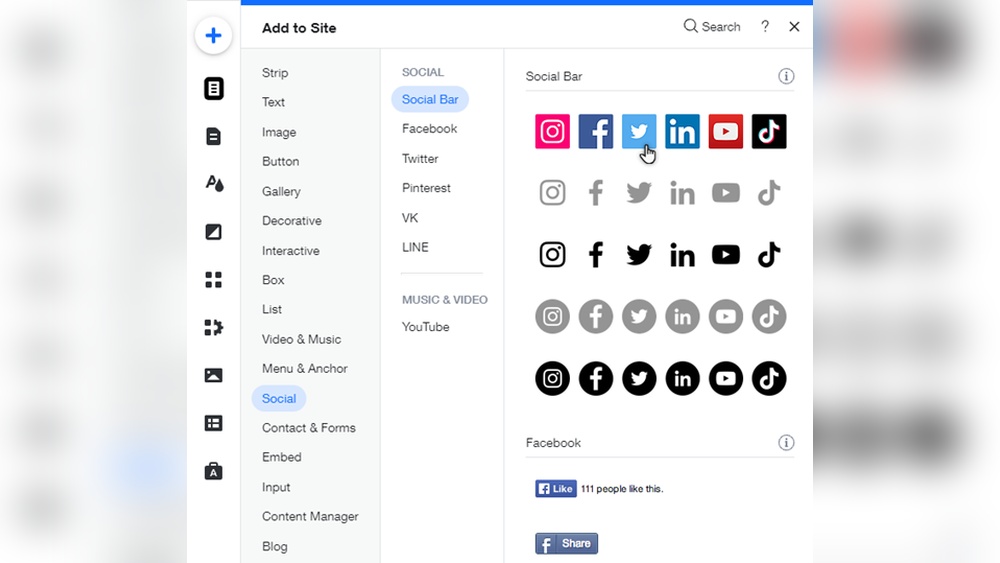
Wix offers a built-in social bar for quick social media link addition. This bar includes popular social icons like Facebook, Twitter, and Instagram. You can add it by dragging the social bar element onto your page.
After placing the bar, click it to open settings. Enter your social media URLs to link each icon. You can also choose the size and alignment of the bar. This method saves time and looks neat on your website.
Adding Individual Icons
For more control, add individual social media icons separately. Go to the Wix Editor and select the “Add” menu. Choose “Button” or “Image” to pick icons for each social platform.
Place each icon where you want on the page. Link each icon to the correct social media profile by entering the URL. This way allows unique placement and different styles for each icon.
Customize each icon’s color and size to fit your website design. This option offers flexibility and helps your site stand out.
Link Icons To Your Profiles
Link icons help visitors find your social media profiles easily on your Wix site. Simply choose icons, link them to your accounts, and place them where visitors can see. This makes your site more connected and interactive.
Copying Profile Urls
First, open the social media site where your profile is. Navigate to your profile page. Look at the address bar at the top of your browser. This shows your profile URL. Click the address to highlight it. Right-click and select “Copy” or press Ctrl+C (Cmd+C on Mac). Keep this URL ready for use in Wix.
Pasting Urls In Wix
Log in to your Wix account and open your website editor. Select the social media icon you want to link. Click on the icon to open its settings. Find the field to enter the URL. Paste your copied profile URL by right-clicking and choosing “Paste” or pressing Ctrl+V (Cmd+V on Mac). Save your changes. Repeat for all social media icons you want to link.
Customize Icon Appearance
Customizing the appearance of your social media icons in Wix helps your website look neat and professional. You can change their size, color, and position to match your site’s style. This makes the icons easy to spot and click. Small changes can make a big difference in user experience.
Adjusting Size And Color
Wix lets you resize social media icons quickly. You can make them bigger to grab attention or smaller to keep a clean look. Changing the icon color is simple too. Choose colors that fit your website’s theme. Bright colors stand out, while soft colors blend in. This way, your icons look right on your page.
Positioning On Your Page
Placing icons in the right spot improves navigation. You can move them to the top, bottom, or side of your page. Many websites put icons in the header or footer. This keeps them visible but not distracting. Use Wix’s drag-and-drop feature to place icons exactly where you want. Proper placement helps visitors find your social links fast.
Credit: www.juicer.io
Test Your Social Links
Testing your social media links in Wix ensures they work correctly. This step helps visitors reach your profiles without issues. Broken links can cause frustration and reduce trust in your site.
Test each link after adding it to your Wix site. Click the icons and check if they open the right pages. Confirm links open in a new tab to keep visitors on your site.
Check Each Link Manually
Click on every social media icon on your Wix site. Watch for the correct social media page to open. If a link leads to a wrong page, fix it in the Wix editor.
Use Different Devices
Test your links on phones, tablets, and computers. Some links might work on one device but not on others. This step ensures all visitors have a smooth experience.
Confirm Link Settings
In Wix, ensure each social icon’s URL is correct. Double-check for typos or missing parts like “https://”. Wrong URLs cause broken or unsafe links.
Test Link Behavior
Make sure links open in a new tab. This keeps visitors on your website after visiting social pages. Change settings in Wix to open links in a new window if needed.
Publish Your Updated Site
Publishing your updated Wix site is the last step to make your changes visible online. After adding social media links, you must save and publish your site. This ensures visitors see the new icons and can connect with you on social platforms.
Publishing is quick and simple. Wix gives you control over when your updates go live. It also keeps your site safe until you are ready to share.
Save Your Changes
Click the “Save” button in the top right corner of the Wix editor. This action stores your work without making it public yet. Saving often prevents losing progress.
Preview Your Site
Use the “Preview” mode to check how your social media links look on the live site. This helps confirm the icons appear correctly and links work. Preview shows the site as visitors see it.
Click The Publish Button
Hit “Publish” to send your updated site online. This step makes all changes visible to everyone. Wix will display a confirmation message when publishing finishes.
Check Your Live Site
After publishing, open your website in a new browser tab. Test each social media link to ensure they open the right pages. This final check guarantees your site is ready for visitors.

Credit: www.youtube.com
Tips For Effective Social Media Integration
Integrating social media links into your Wix site helps visitors connect with you across platforms. Effective integration makes your site more interactive and increases your social reach. Follow these simple tips to ensure your social media links work well and attract attention.
Choose Relevant Platforms
Select social media sites that fit your audience and business. Focus on platforms where your visitors spend time. Avoid adding too many links that confuse users. Quality over quantity helps users engage better with your content.
Keep Links Updated
Check your social media links regularly. Broken or outdated links hurt your site’s credibility. Update URLs if you change usernames or pages. Fresh links keep visitors connected and improve your site’s trust.
Use Clear Call-to-actions
Tell visitors what to do with your social links. Use phrases like “Follow us” or “Connect with us.” Clear calls guide users and increase clicks. Make your buttons or icons easy to find and understand.
Frequently Asked Questions
How Do I Add Social Media Links To Wix?
To add social media links in Wix, go to the Editor, click Add, then Social. Choose icons, link your profiles, and position them.
Can I Customize Social Media Icons In Wix?
Yes, Wix allows icon customization. You can change icon style, size, color, and hover effects to match your site’s design.
Are Social Media Links Mobile-friendly In Wix?
Wix ensures social media links are responsive. Icons automatically adjust for mobile devices, providing a seamless user experience across all screens.
How Do I Link Instagram To My Wix Site?
Select the Instagram icon in the Social menu, enter your Instagram URL, and save. The icon will link visitors directly to your profile.
Conclusion
Adding social media links in Wix helps visitors connect with you easily. It boosts your website’s reach and makes sharing simple. Just follow the steps carefully to place icons where they fit best. Keep your links updated to stay active online.
This small change can improve your site’s usability and engagement. Start adding your social media links today and watch your presence grow steadily. Simple, quick, and effective.